
-
SnapOS
-
-
- Articles coming soon
-
-
-
- Citrix HDX + USB Headset (Call-Center Baseline)
- OS/Firmware Update & Rollback
- Power Management and Session State
- Wi-Fi Roaming & Link Change Mid-Session
- Kiosk / Assigned-Access Auto-Launch
- Barcode Scanner (HID) with Line-of-Business App
- Printing to Local USB & Network Printers
- USB Device Management – Block Storage
- Multi-Monitor & 4K Performance
- Microsoft AVD/RDP + Teams Optimized Video
- VMware Horizon + Smart Card / CAC Login
-
-
-
-
zWAN
-
-
-
-
- Firewall & Layer 7 Application Filtering
- VPN Site-to-Site Tunnel Setup & Connectivity (z40 to Cloud vGR)
- Intrusion Prevention System (IPS) / Intrusion Detection System (IDS) Testing
- DNS Filtering
- DDoS Protection & Logging
- MAC Address Filtering & Geo-fencing
- Application Control & Protocol Blocking
- Authentication & Access Control (zID)
-
- WAN Link Failover & Load Balancing (ACI Mode)
- Dynamic Path Selection & Application-Aware Routing
- SaaS & Internet Breakout Validation
- QoS for Microsoft Teams (Datacenter vGR + Branch z40)
- Tunnel Failover (z40 ↔ vGR) — WAN00 (wired) primary, WAN03 (4G) & WAN04 (5G) backups
- IP Routing & Static Route Steering (z40 Branch)
- VLAN & Layer-2 Bridging
-
-
-
-
-
-
- Articles coming soon
-
-
-
-
- Articles coming soon
-
- Articles coming soon
-
-
-
-
-
-
- Articles coming soon
-
- Articles coming soon
-
- Articles coming soon
-
- Articles coming soon
-
-
-
-
-
- Articles coming soon
-
- Articles coming soon
-
- Articles coming soon
-
- Articles coming soon
-
-
-
-
-
- Articles coming soon
-
- Articles coming soon
-
- Articles coming soon
-
- Articles coming soon
-
-
- Articles coming soon
-
- IPsec Tunnel not Establishing
- SSL-VPN Tunnel not Establishing
- Mobile Network Issues
- Management Tunnel does not Establish
- DNS not Resolving from Local Network Appliance
- DNS Resolution Issues in Tunnel Configuration
- DHCP Server not Leasing IP to LAN PC
- Debugging EC Events - Unknown Status Issue
- Trusted-MAC Geofencing Issues
- DNS Issues from DC LAN PC
- Troubleshooting LAN Connectivity to Internet via WAN, Remote Branch LAN, or Local Branch LAN
- NetBalancer gateways displaying Faulty/Inactive
- Packet Drop Issues
-
-
zAccess
-
StorTrends
Gateway Routers List
Overview
The List Page displays all Gateway Routers managed by the Director. It allows users to search for specific devices, apply filters to narrow down the list, and view real-time device statuses, including interface health and consolidated site status (e.g., degraded sites, sites down, etc.).
Additionally, users can perform key management actions on devices, such as:
✅ Rebooting
✅ Generating reports
✅ Viewing logs
✅ Establishing SSH connections for troubleshooting and advanced management
Key Features
The following details are available on the List Page:
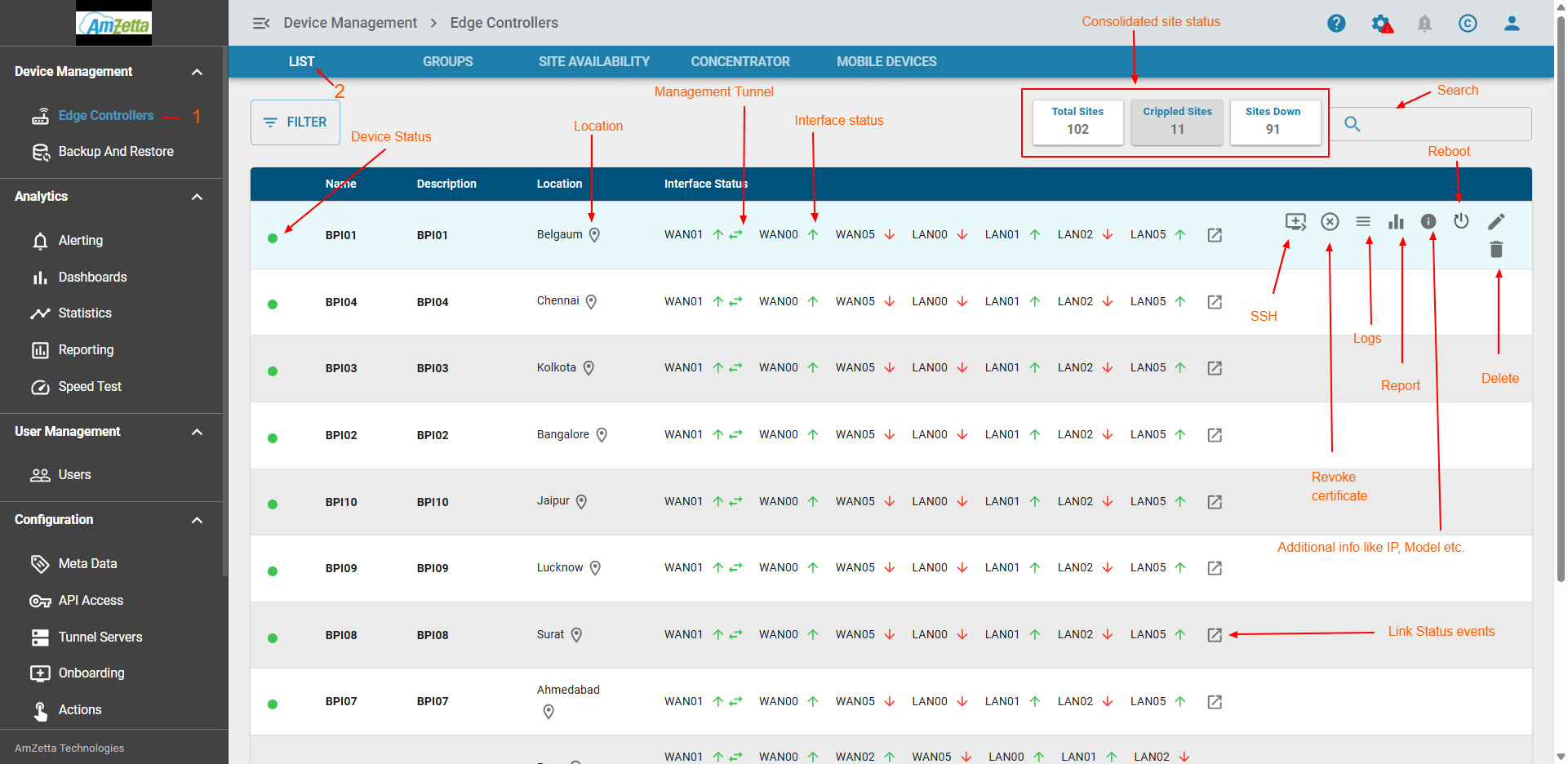
The image below highlights the available features:
Device Status
The Device Status is displayed in the leftmost column using color-coded indicators:
-
🟢 Green Dot → The Gateway Router is online
-
🔴 Red Dot → The device is offline. Hovering over the red dot displays the last connected timestamp
Interface Status
The Interface Status column provides real-time network interface health indicators:
-
🟢 Green Upward Arrow → Interface is active/online
-
🔴 Red Downward Arrow → Interface is down/offline
-
⚫ Grey Downward Arrow → Interface is disabled
Management Tunnel
A double arrow icon is displayed alongside the interface status to indicate whether the Management Tunnel is active:
-
🟢 Green Double Arrows → Logging is enabled
-
🔴 Red Double Arrows → Logging is disabled, but the management tunnel is still active
Location
The Location column displays the Gateway Router's geographical location. If latitude and longitude were provided during onboarding, a location icon appears.
📍 Clicking the location icon opens the device’s location on a map.
Search Gateway Router
The search bar in the top-right corner allows users to quickly find Gateway Routers using:
-
Device Name
-
Device Description
Filters
Users can apply filters to narrow down results based on status, location, or other attributes.
Reboot Device
When hovering over a device row, a power icon appears on the right.
⚡ Clicking this icon will reboot the Gateway Router.
Edit Gateway Router
When hovering over a device row, a pen icon appears on the right.
🛠️ Clicking this icon enables editing of device details, including:
-
Gateway Router Name
-
Description
-
Meta Data (add/remove)
Delete Gateway Router
When hovering over a device row, a delete icon appears on the right.
🗑️ Clicking this icon removes the device from the Director.
⚠️ Once removed, the Gateway Router is no longer managed by the Director and must be re-onboarded to regain management capabilities.
SSH Access
When hovering over a device row, a monitor/desktop icon appears on the right.
🖥️ Clicking this icon opens an SSH session to the Gateway Router for direct CLI access.
Device Logs
When hovering over a device row, a list icon appears on the right.
📋 Clicking this icon opens a log viewer that displays event history for the device.
Generate Reports
When hovering over a device row, a bar graph icon appears on the right.
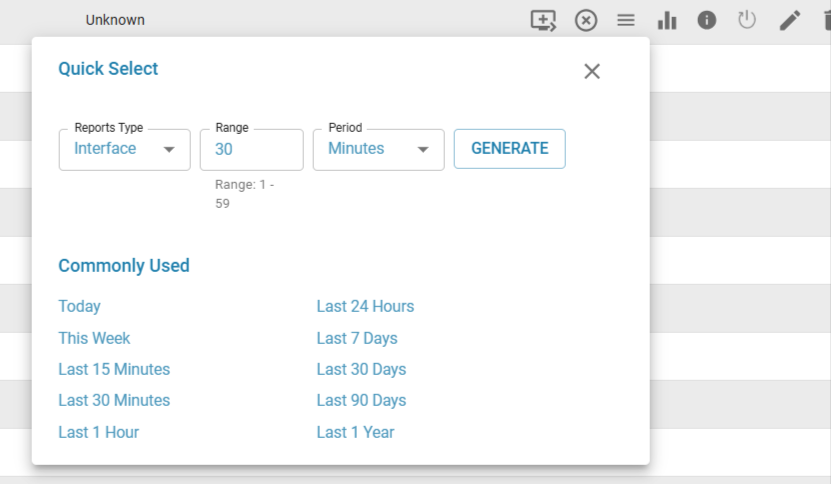
📊 Clicking this icon opens a pop-up allowing users to:
-
Select a time range
-
Generate performance and activity reports
Known Limitations
✅ None – All listed features are fully functional.