
-
SnapOS
-
-
- Articles coming soon
-
-
-
- Citrix HDX + USB Headset (Call-Center Baseline)
- OS/Firmware Update & Rollback
- Power Management and Session State
- Wi-Fi Roaming & Link Change Mid-Session
- Kiosk / Assigned-Access Auto-Launch
- Barcode Scanner (HID) with Line-of-Business App
- Printing to Local USB & Network Printers
- USB Device Management – Block Storage
- Multi-Monitor & 4K Performance
- Microsoft AVD/RDP + Teams Optimized Video
- VMware Horizon + Smart Card / CAC Login
-
-
-
-
zWAN
-
-
-
-
- Firewall & Layer 7 Application Filtering
- VPN Site-to-Site Tunnel Setup & Connectivity (z40 to Cloud vGR)
- Intrusion Prevention System (IPS) / Intrusion Detection System (IDS) Testing
- DNS Filtering
- DDoS Protection & Logging
- MAC Address Filtering & Geo-fencing
- Application Control & Protocol Blocking
- Authentication & Access Control (zID)
-
- WAN Link Failover & Load Balancing (ACI Mode)
- Dynamic Path Selection & Application-Aware Routing
- SaaS & Internet Breakout Validation
- QoS for Microsoft Teams (Datacenter vGR + Branch z40)
- Tunnel Failover (z40 ↔ vGR) — WAN00 (wired) primary, WAN03 (4G) & WAN04 (5G) backups
- IP Routing & Static Route Steering (z40 Branch)
- VLAN & Layer-2 Bridging
-
-
-
-
-
-
- Articles coming soon
-
- Articles coming soon
-
-
-
- Articles coming soon
-
- Articles coming soon
-
-
-
-
-
-
- Articles coming soon
-
- Articles coming soon
-
- Articles coming soon
-
- Articles coming soon
-
-
-
-
-
- Articles coming soon
-
- Articles coming soon
-
- Articles coming soon
-
- Articles coming soon
-
-
-
-
-
- Articles coming soon
-
- Articles coming soon
-
- Articles coming soon
-
- Articles coming soon
-
-
- Articles coming soon
-
- IPsec Tunnel not Establishing
- SSL-VPN Tunnel not Establishing
- Mobile Network Issues
- Management Tunnel does not Establish
- DNS not Resolving from Local Network Appliance
- DNS Resolution Issues in Tunnel Configuration
- DHCP Server not Leasing IP to LAN PC
- Debugging EC Events - Unknown Status Issue
- Trusted-MAC Geofencing Issues
- DNS Issues from DC LAN PC
- Troubleshooting LAN Connectivity to Internet via WAN, Remote Branch LAN, or Local Branch LAN
- NetBalancer gateways displaying Faulty/Inactive
- Packet Drop Issues
-
-
zGuardian
-
zAccess
-
StorTrends
Print
SnapOS Devices & Endpoints
Summary
Import or manually add SnapOS endpoints into zMAN, then assign them to a registered zDM Server for provisioning. Once assigned, devices appear under Active Clients for further configuration.
Prerequisites
- At least one zDM Server onboarded in Onboarded zDM.
- CSV file of zTC_IDs (MAC), plus optional location, latitude, longitude.
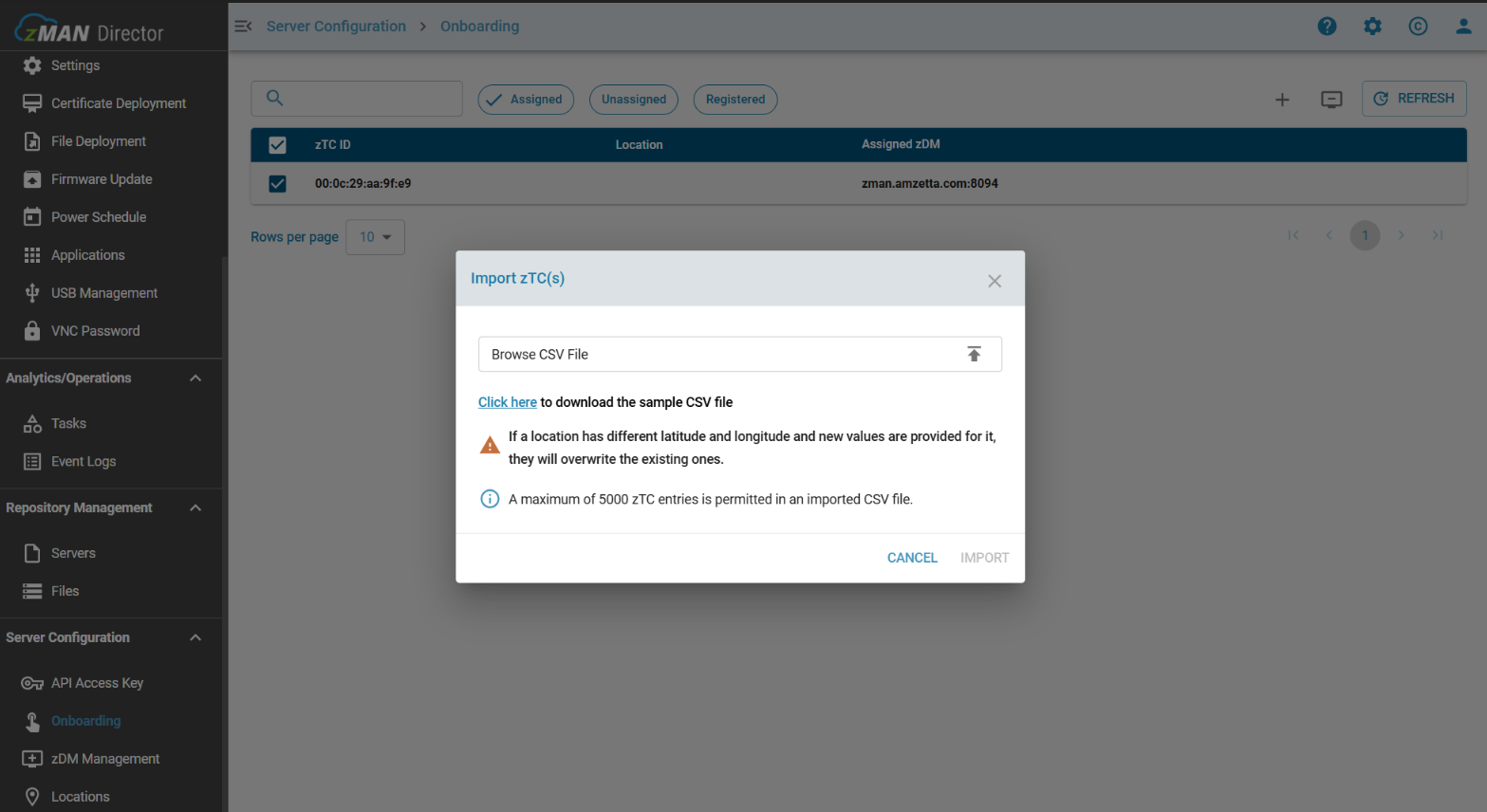
Importing Multiple zTCs
- In zMAN UI, navigate to Server Configuration –> Onboarding.
- Download the sample CSV by clicking the (+) symbol and then Import zTCs.
- Click Here to download the sample CSV file.
- Remove the default values within the downloaded CSV and populate with the corresponding information below:
- ZTC_ID: LAN MAC address
- Location: site name (optional)
- Latitude/Longitude: geographic coordinates (optional)
- Upload the filled CSV (Repeat steps 1 & 2).
- Browse to the edited CSV file and click IMPORT.
- Devices without location data appear under the Unassigned tab.
- Successful imports list under Unassigned until assignment.
Adding a Single SnapOS Device
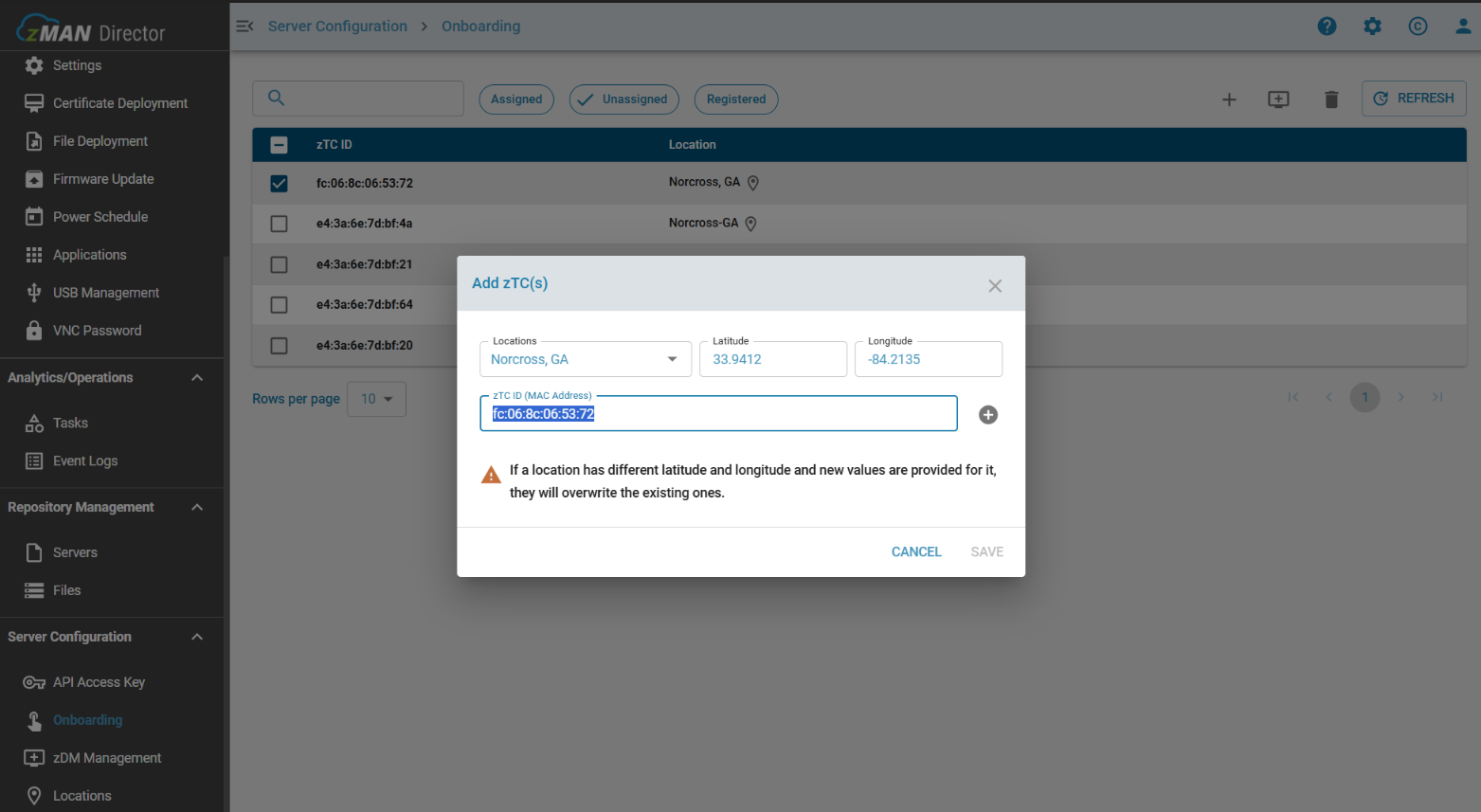
- Navigate to Server Configuration –> Onboarding –> click the (+) symbol and then Add zTC(s).
- Within SnapOS navigate to Start –> Applications –> click Management Server Configurator –> Info.
- Copy the zTC MAC listed at the bottom.
- In zMAN, Enter the device’s ZTC_ID (MAC) and optional (location, latitude, and longitude).
- Click (+)
- Click Save
 Assigning to zDM
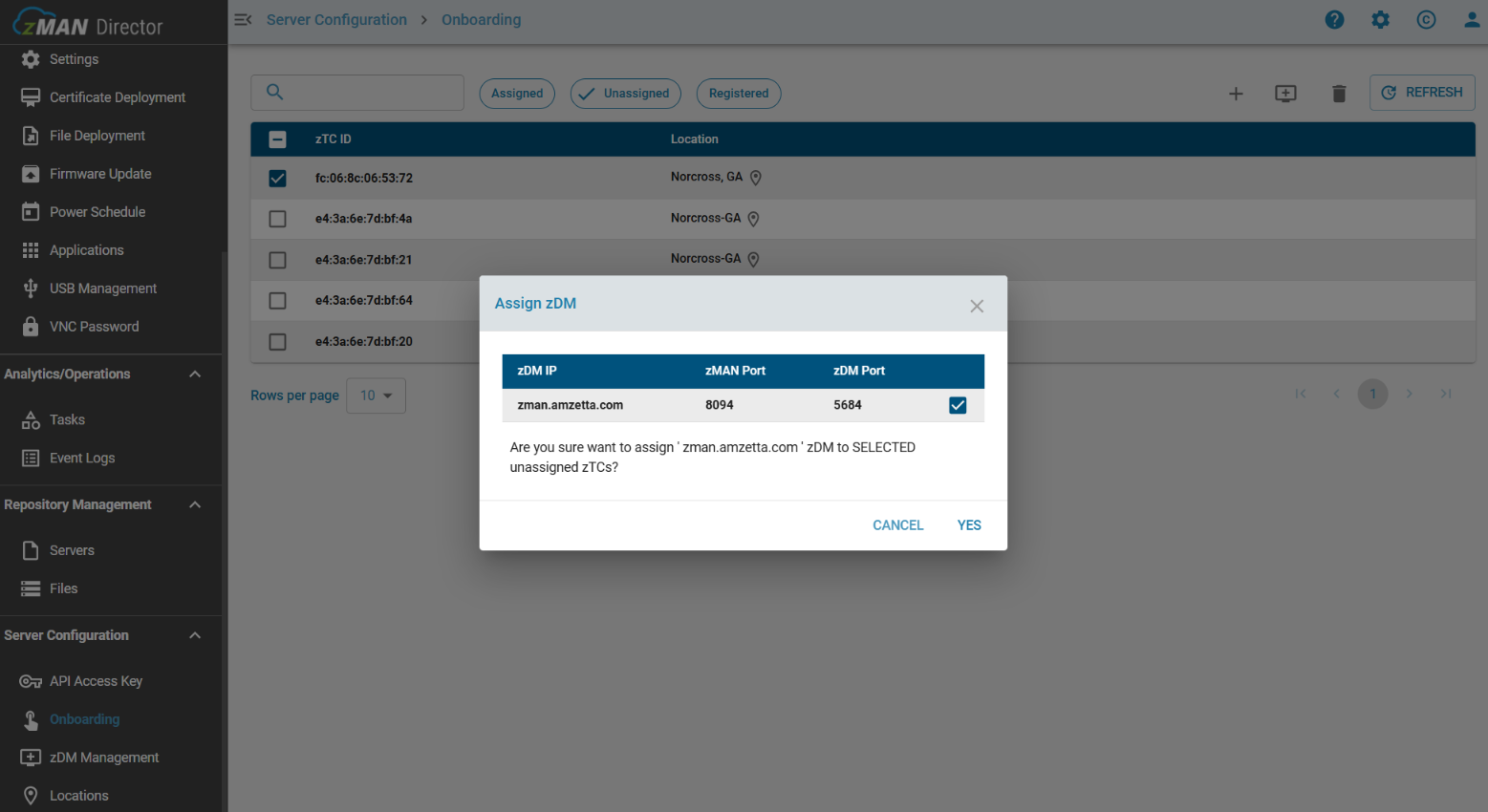
- Under Server Configuration –> Onboarding –> Unassigned, select one or multiple devices.
- Click the icon that resembles a computer monitor with a plus sign in it [+].
- Then choose the target zDM entry server and Click Yes.
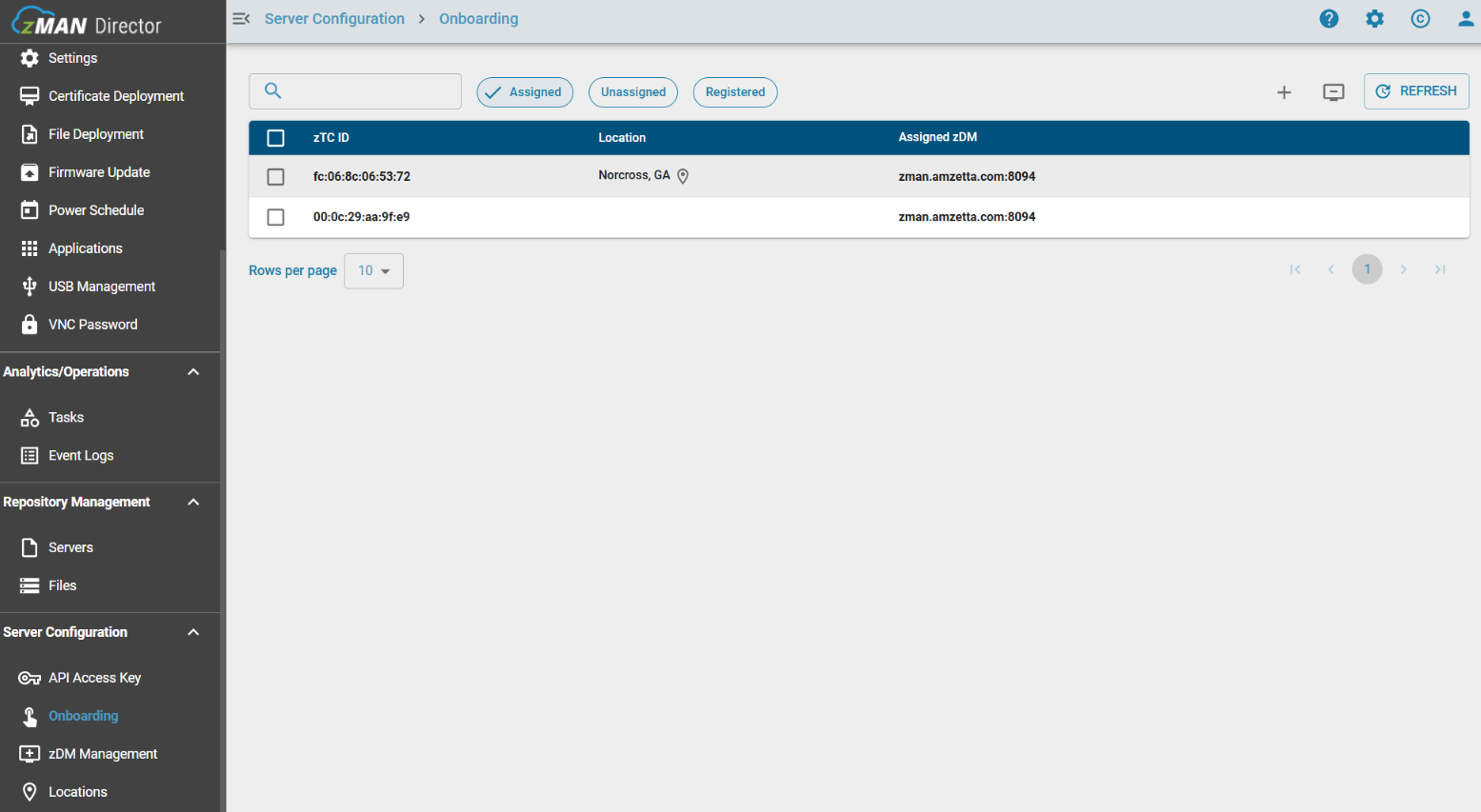
- Upon successful provisioning, devices move to the Assigned tab.
Provisioning
- Manual provisioning:
On the SnapOS device, open Management Server Configurator again and select Manual. - Copy and paste the zMAN Management Portal Access URL:
https://<zMan-IP>/zman-tenant/ - Copy and paste the Management Portal Access Key. (Found under Server Configuration → API Access Key) .
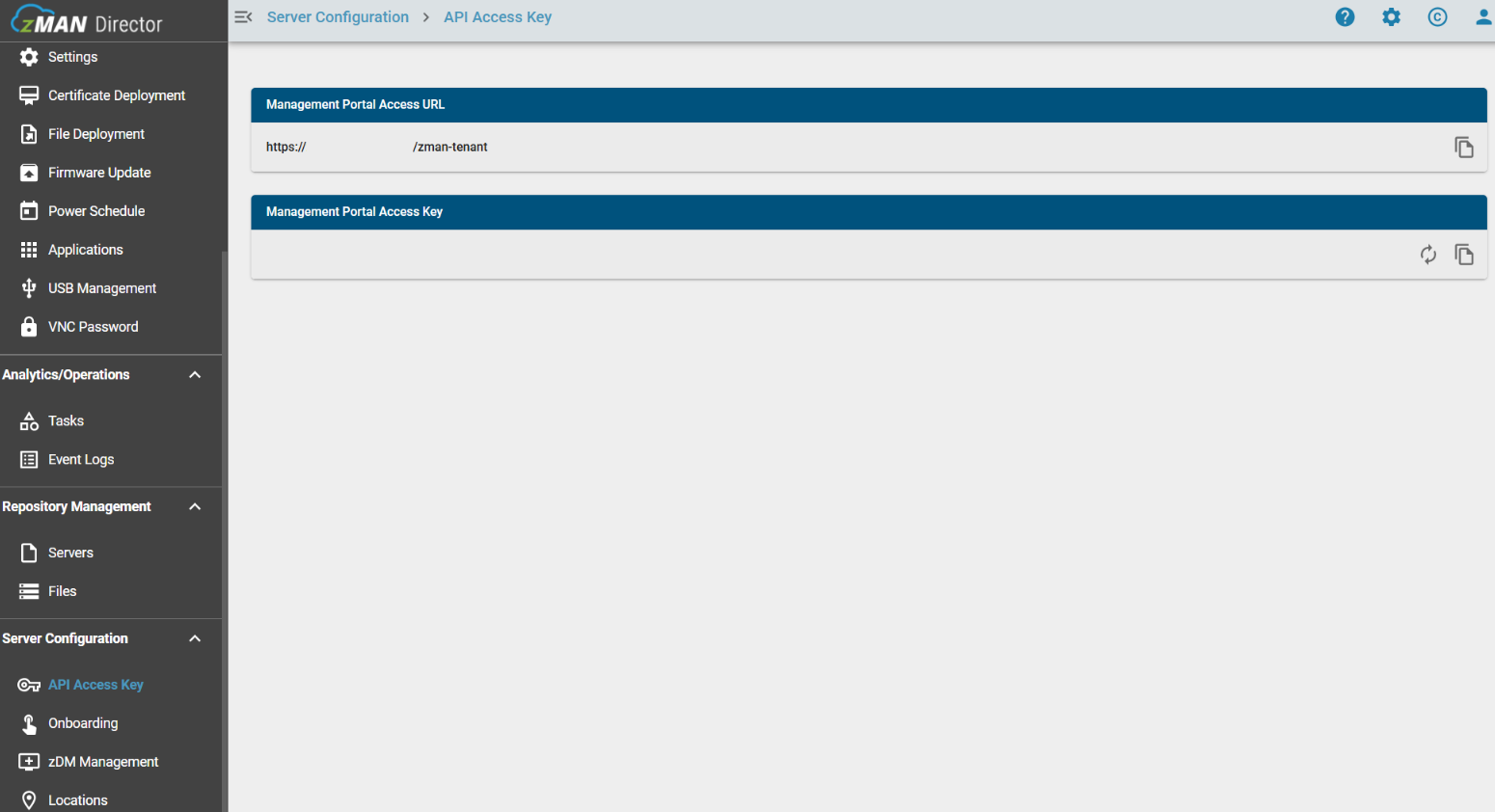
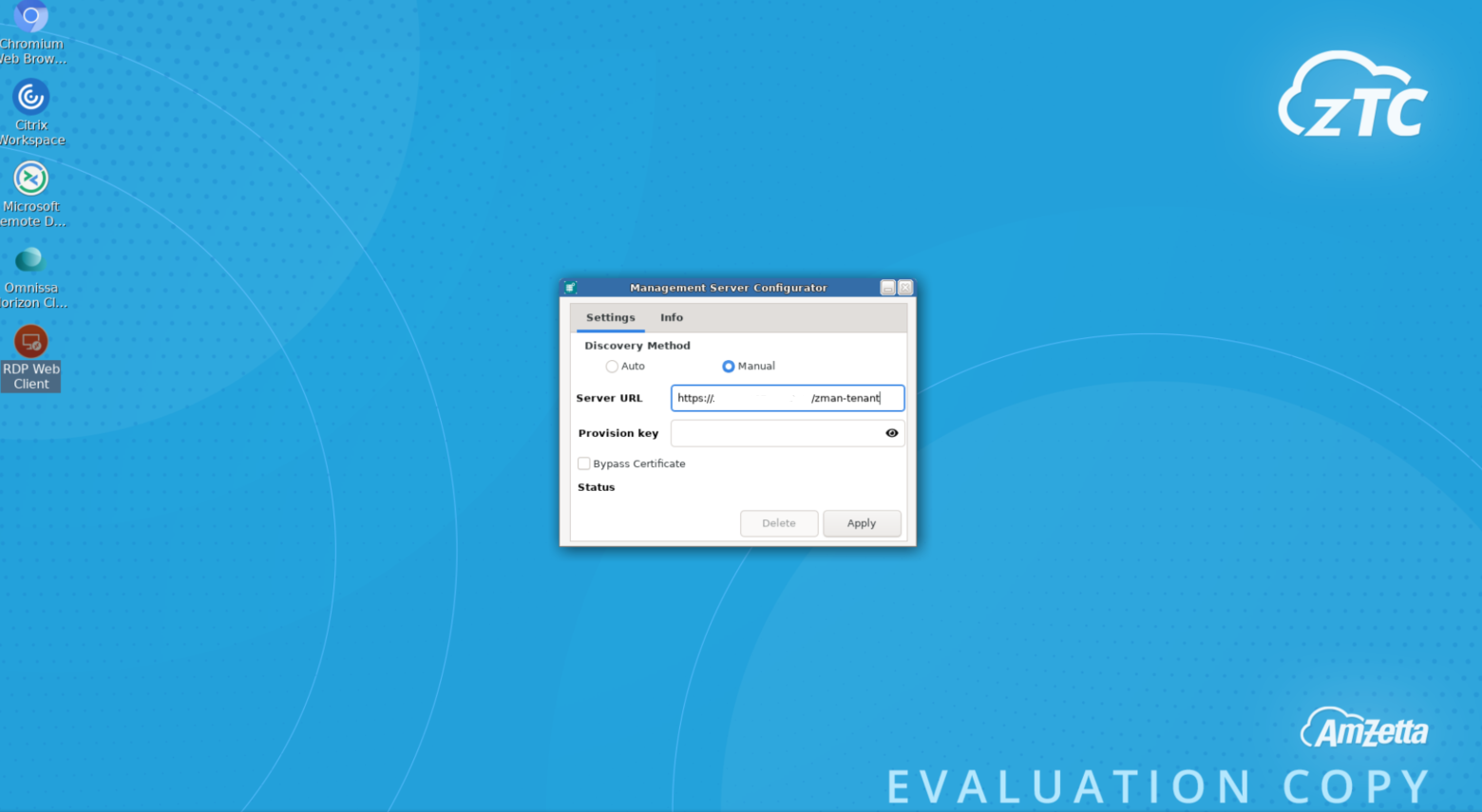
- Upon successful onboarding, the status will change to Connected as seen below.
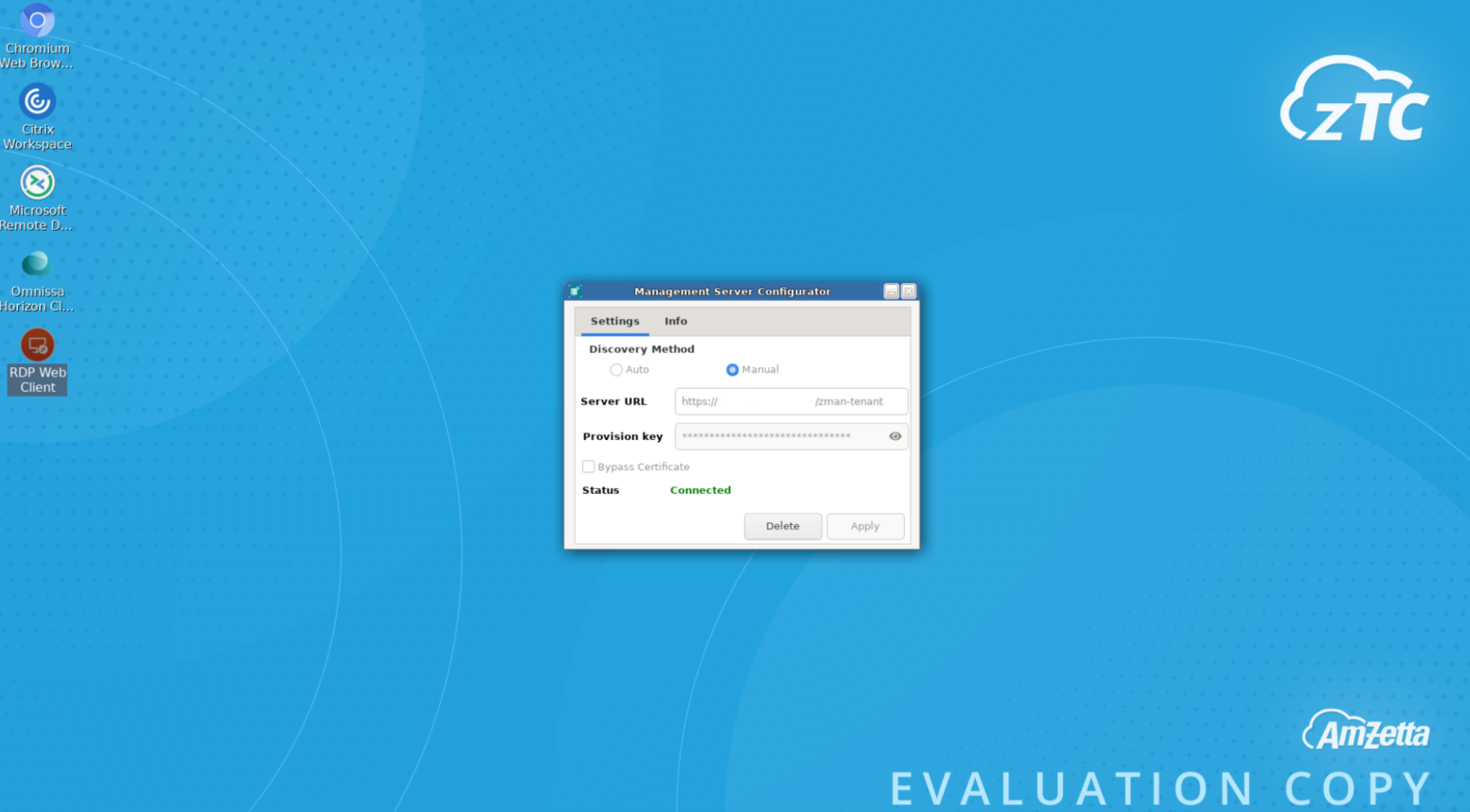
Post-Provisioning
- Provisioned devices appear under zTC Clients → Registered. From here, apply profiles, settings, firmware, and power actions.
- If a provisioned device goes offline, tasks defer until it reconnects, then resume automatically.
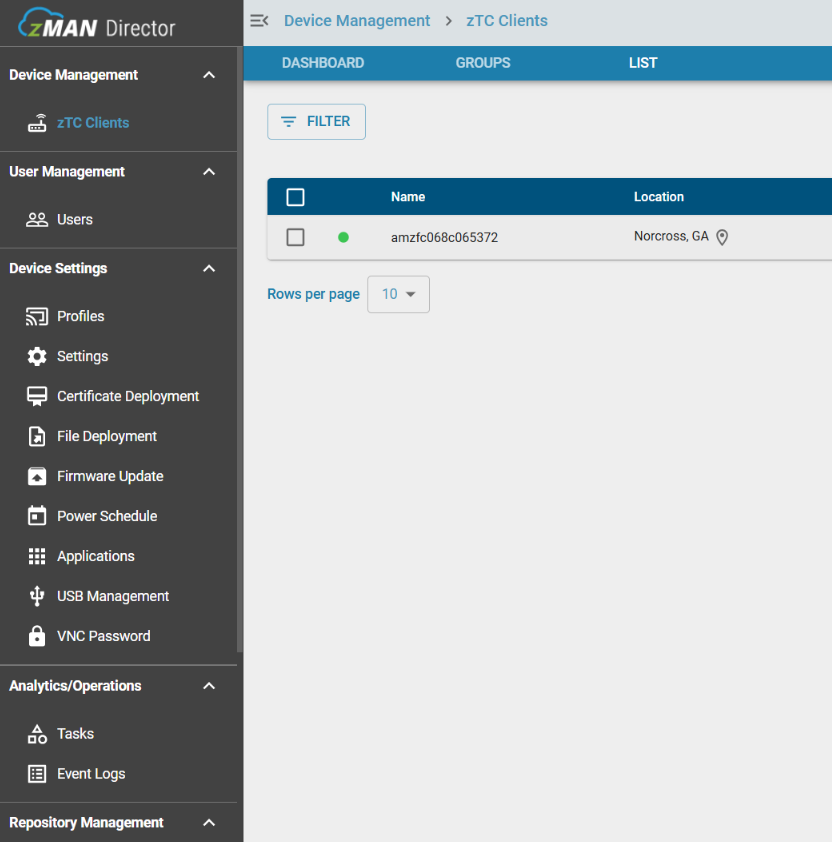
Table of Contents