
-
SnapOS
-
-
- Articles coming soon
-
-
-
- Citrix HDX + USB Headset (Call-Center Baseline)
- OS/Firmware Update & Rollback
- Power Management and Session State
- Wi-Fi Roaming & Link Change Mid-Session
- Kiosk / Assigned-Access Auto-Launch
- Barcode Scanner (HID) with Line-of-Business App
- Printing to Local USB & Network Printers
- USB Device Management – Block Storage
- Multi-Monitor & 4K Performance
- Microsoft AVD/RDP + Teams Optimized Video
- VMware Horizon + Smart Card / CAC Login
-
-
-
-
zWAN
-
-
-
-
- Firewall & Layer 7 Application Filtering
- VPN Site-to-Site Tunnel Setup & Connectivity (z40 to Cloud vGR)
- Intrusion Prevention System (IPS) / Intrusion Detection System (IDS) Testing
- DNS Filtering
- DDoS Protection & Logging
- MAC Address Filtering & Geo-fencing
- Application Control & Protocol Blocking
- Authentication & Access Control (zID)
-
- WAN Link Failover & Load Balancing (ACI Mode)
- Dynamic Path Selection & Application-Aware Routing
- SaaS & Internet Breakout Validation
- QoS for Microsoft Teams (Datacenter vGR + Branch z40)
- Tunnel Failover (z40 ↔ vGR) — WAN00 (wired) primary, WAN03 (4G) & WAN04 (5G) backups
- IP Routing & Static Route Steering (z40 Branch)
- VLAN & Layer-2 Bridging
-
-
-
-
-
-
- Articles coming soon
-
- Articles coming soon
-
-
-
- Articles coming soon
-
- Articles coming soon
-
-
-
-
-
-
- Articles coming soon
-
- Articles coming soon
-
- Articles coming soon
-
- Articles coming soon
-
-
-
-
-
- Articles coming soon
-
- Articles coming soon
-
- Articles coming soon
-
- Articles coming soon
-
-
-
-
-
- Articles coming soon
-
- Articles coming soon
-
- Articles coming soon
-
- Articles coming soon
-
-
- Articles coming soon
-
- IPsec Tunnel not Establishing
- SSL-VPN Tunnel not Establishing
- Mobile Network Issues
- Management Tunnel does not Establish
- DNS not Resolving from Local Network Appliance
- DNS Resolution Issues in Tunnel Configuration
- DHCP Server not Leasing IP to LAN PC
- Debugging EC Events - Unknown Status Issue
- Trusted-MAC Geofencing Issues
- DNS Issues from DC LAN PC
- Troubleshooting LAN Connectivity to Internet via WAN, Remote Branch LAN, or Local Branch LAN
- NetBalancer gateways displaying Faulty/Inactive
- Packet Drop Issues
-
-
zGuardian
-
zAccess
-
StorTrends
Print
Factory Reset
To perform a factory reset, follow the steps below and select the method that best suits your needs.
Method 1: Factory Reset via amz_Secureshell
- Open amz_Secureshell and log in with the correct credentials.
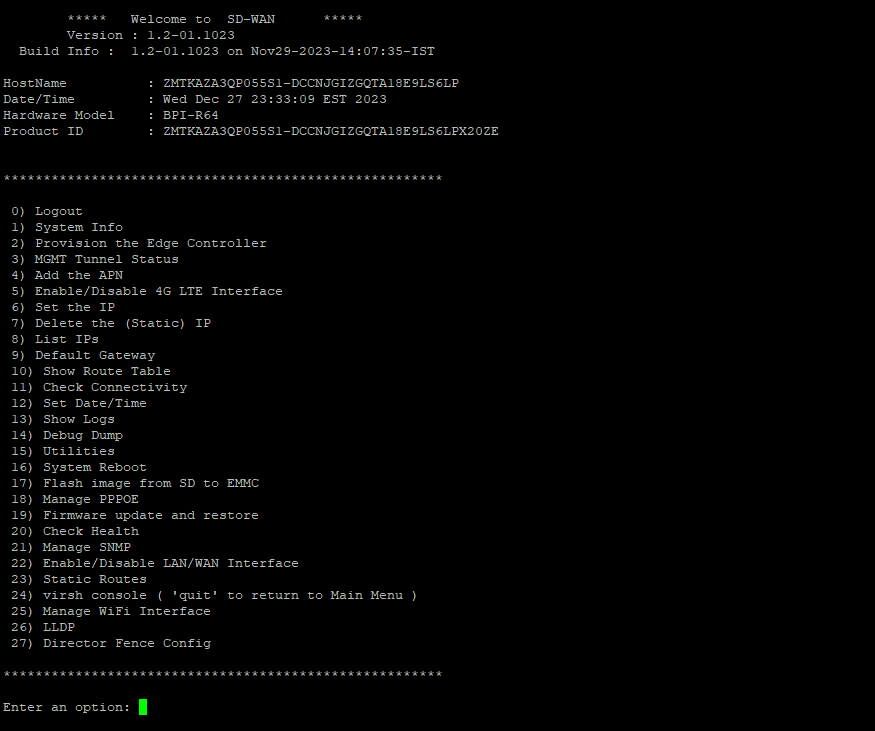
- Once logged in, enter 19 and press Enter to select the option for factory reset.

- In the factory reset menu, choose 4 and press Enter to initiate the reset process.

- When prompted for confirmation, press y to proceed with the factory reset.
Note: Make sure to back up any essential data before performing the factory reset, as this action will erase all settings and configurations.
Method 2: Factory Reset via Hardware Reset Button
- Locate the hardware reset button on the device.
- Press and hold the reset button for 5 seconds until the LED starts blinking.
- Keep holding the button for an additional 3 seconds to confirm and start the factory reset.
Note: Releasing the button within the 8-second period will cancel the reset process.
- Release the button once the reset begins, and the device will return to factory defaults.
Note: Ensure you back up any essential data before performing the factory reset, as this will erase all settings and configurations.
Method 3: Factory Reset via Local Web UI
- Open a web browser and enter the device’s local IP address (e.g., 192.168.64.1).
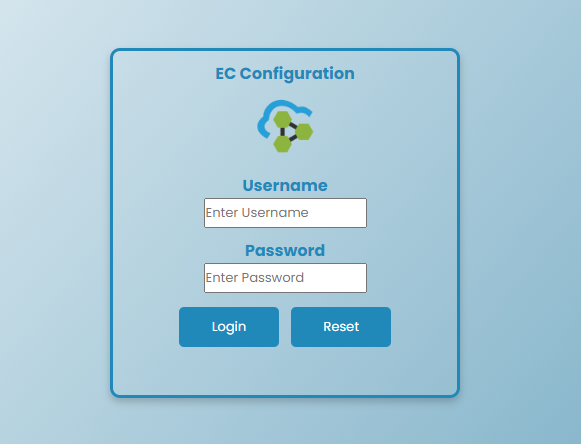
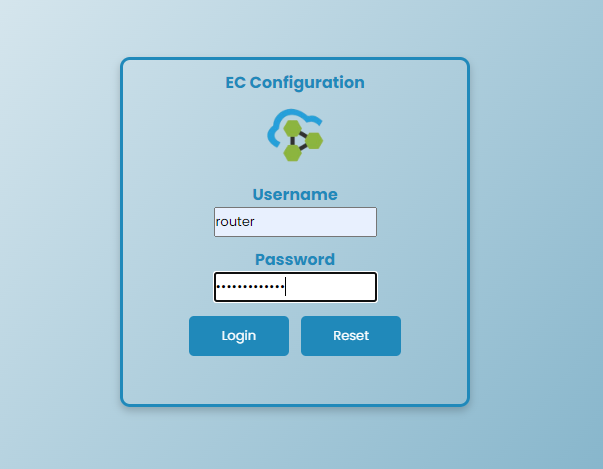
- Log in to the device’s web interface with the provided credentials.
- Navigate to the Firmware section in the menu to locate the factory reset option.
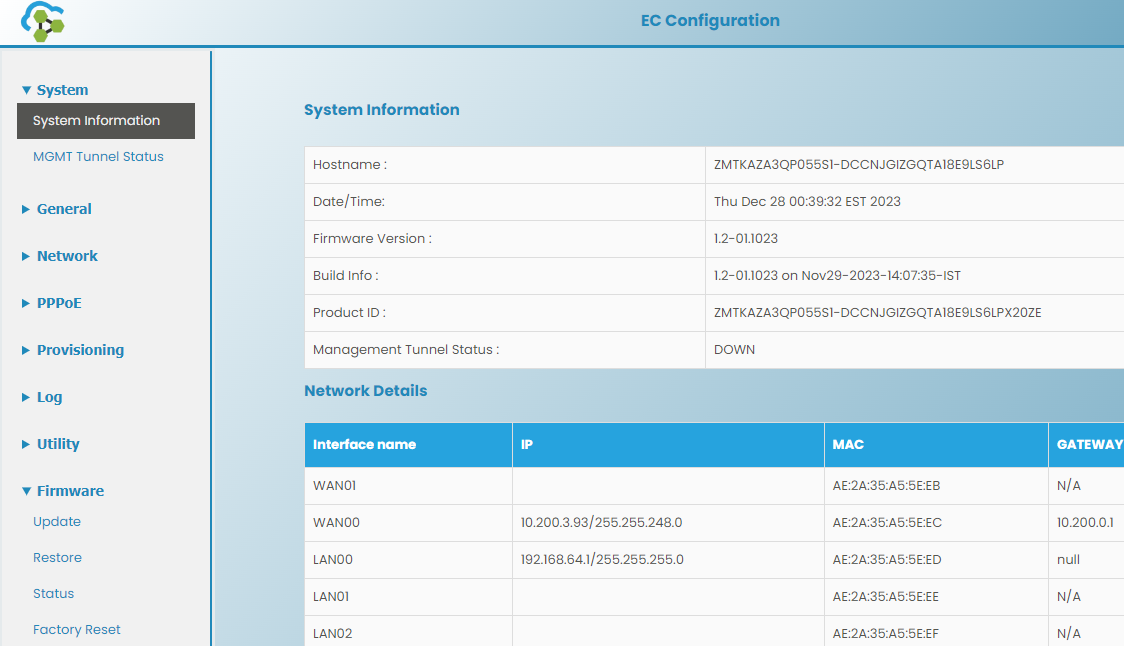
- Click Factory Reset. A confirmation window will appear—select Reset to confirm. The device will begin the reset process.
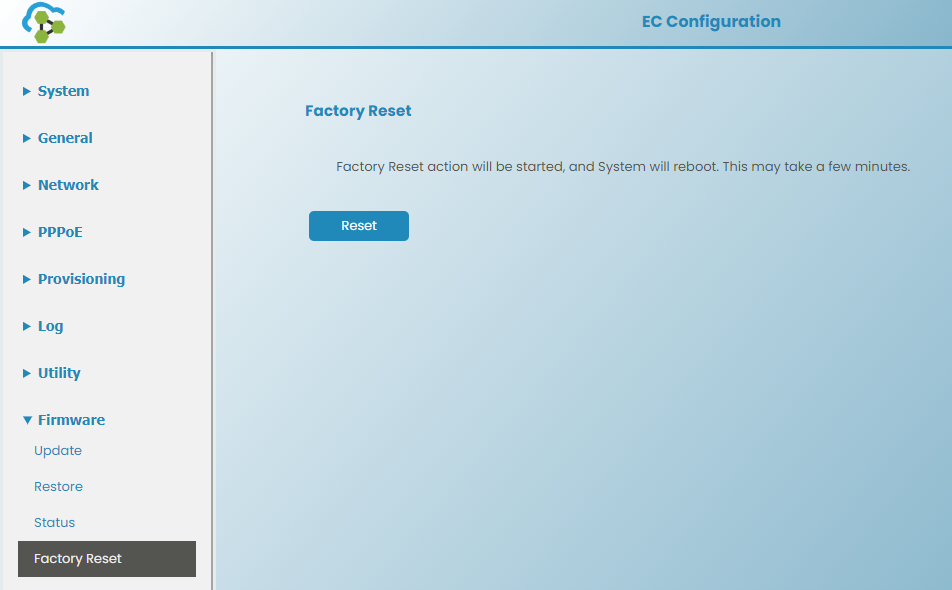
Note: Make sure to back up any essential data before proceeding with the factory reset, as it will erase all existing settings and configurations.
Table of Contents