
-
SnapOS
-
-
- Articles coming soon
-
-
-
- Citrix HDX + USB Headset (Call-Center Baseline)
- OS/Firmware Update & Rollback
- Power Management and Session State
- Wi-Fi Roaming & Link Change Mid-Session
- Kiosk / Assigned-Access Auto-Launch
- Barcode Scanner (HID) with Line-of-Business App
- Printing to Local USB & Network Printers
- USB Device Management – Block Storage
- Multi-Monitor & 4K Performance
- Microsoft AVD/RDP + Teams Optimized Video
- VMware Horizon + Smart Card / CAC Login
-
-
-
-
zWAN
-
-
-
-
- Firewall & Layer 7 Application Filtering
- VPN Site-to-Site Tunnel Setup & Connectivity (z40 to Cloud vGR)
- Intrusion Prevention System (IPS) / Intrusion Detection System (IDS) Testing
- DNS Filtering
- DDoS Protection & Logging
- MAC Address Filtering & Geo-fencing
- Application Control & Protocol Blocking
- Authentication & Access Control (zID)
-
- WAN Link Failover & Load Balancing (ACI Mode)
- Dynamic Path Selection & Application-Aware Routing
- SaaS & Internet Breakout Validation
- QoS for Microsoft Teams (Datacenter vGR + Branch z40)
- Tunnel Failover (z40 ↔ vGR) — WAN00 (wired) primary, WAN03 (4G) & WAN04 (5G) backups
- IP Routing & Static Route Steering (z40 Branch)
- VLAN & Layer-2 Bridging
-
-
-
-
-
-
- Articles coming soon
-
-
- Articles coming soon
-
-
-
- Articles coming soon
-
- Articles coming soon
-
-
-
-
-
-
- Articles coming soon
-
- Articles coming soon
-
- Articles coming soon
-
- Articles coming soon
-
-
-
-
-
- Articles coming soon
-
- Articles coming soon
-
- Articles coming soon
-
- Articles coming soon
-
-
-
-
-
- Articles coming soon
-
- Articles coming soon
-
- Articles coming soon
-
- Articles coming soon
-
-
- Articles coming soon
-
- IPsec Tunnel not Establishing
- SSL-VPN Tunnel not Establishing
- Mobile Network Issues
- Management Tunnel does not Establish
- DNS not Resolving from Local Network Appliance
- DNS Resolution Issues in Tunnel Configuration
- DHCP Server not Leasing IP to LAN PC
- Debugging EC Events - Unknown Status Issue
- Trusted-MAC Geofencing Issues
- DNS Issues from DC LAN PC
- Troubleshooting LAN Connectivity to Internet via WAN, Remote Branch LAN, or Local Branch LAN
- NetBalancer gateways displaying Faulty/Inactive
- Packet Drop Issues
-
-
zAccess
-
StorTrends
SCEP and 802.1X Configuration on SnapOS
Overview
This knowledge base article describes the process for configuring SCEP (Simple Certificate Enrollment Protocol) and IEEE 802.1X authentication on a zTC device. The procedure outlines certificate enrollment over an unsecured network and subsequent migration to a secured, certificate-based network using EAP-TLS.
Environment Details
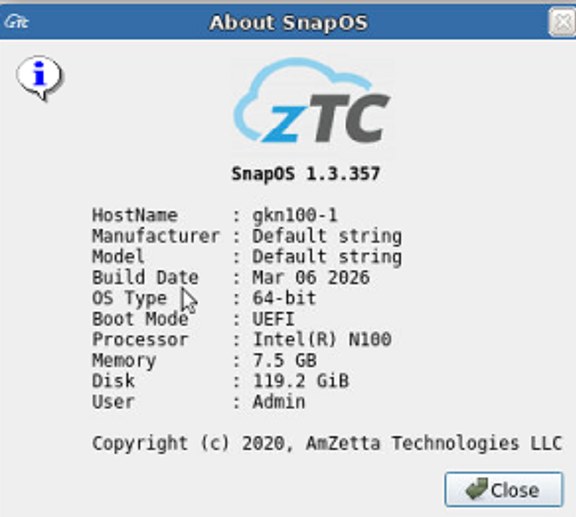
- SnapOS Firmware Version: 1.3.357
- Hardware: zTC (N100 TC)
- Switch Model: Netgear GS324TPv2
Prerequisites
- Access to an external DHCP server on the unsecured network
- A functional SCEP server capable of issuing device certificates
- A network supporting 802.1X with EAP-TLS authentication
- Required CA and client certificates issued via SCEP
Initial Network Connectivity (Unsecured Network)
- Connect the zTC to the Unsecured (Red) network.
- Verify that the device receives an IP address in the 10.50.x.x range from the external DHCP server
(example:10.50.1.0).
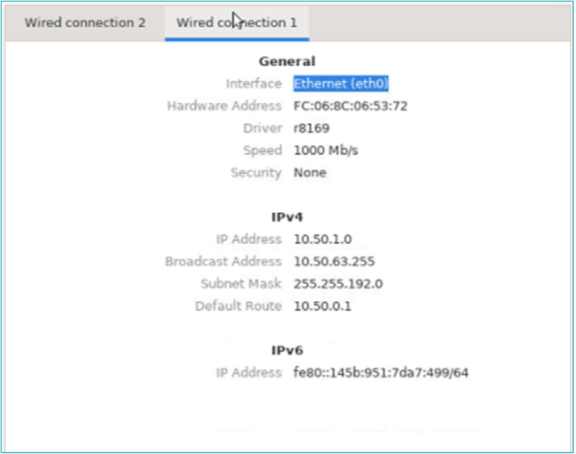
At this stage, the device uses the unsecured network only to complete certificate enrollment.
Certificate Enrollment Using SCEP
- Access the SCEP enrollment interface on the zTC.
- Obtain the Challenge Code from the SCEP server while connected to the unsecured network.
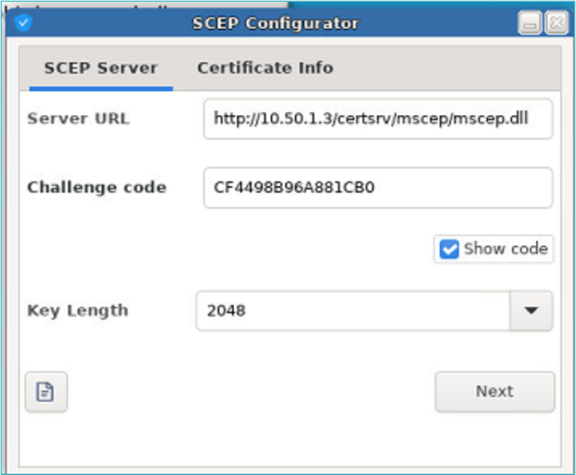
- Enter the challenge code and provide the required certificate information.
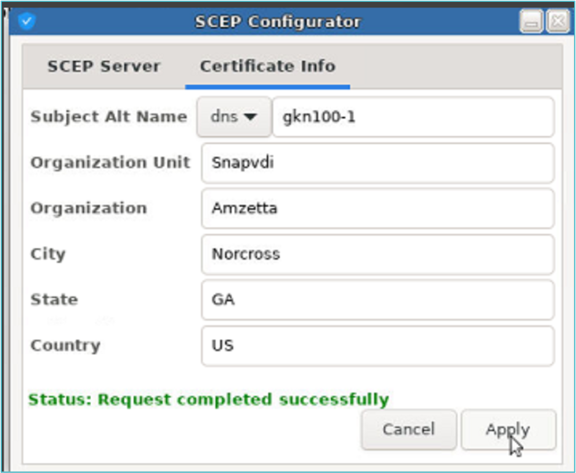
- Submit the request and confirm that the enrollment completes successfully.
Upon successful enrollment, the issued certificates are stored on the zTC at:
/etc/scepEnabling 802.1X Authentication
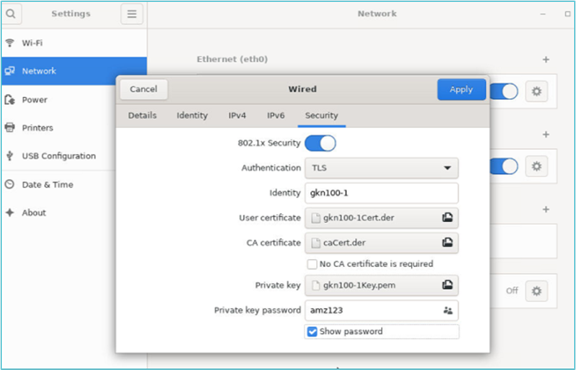
- Navigate to the Network configuration page on the zTC.
- Enable 802.1X authentication.
- Add the required certificates obtained via SCEP:
- Client certificate
- Private key
- CA certificate
- Apply the configuration changes.
Applying Network Changes
To ensure the 802.1X configuration is fully applied, perform one of the following actions:
- Reboot the zTC device, or
- Disable and re-enable eth0 from the Network configuration page.
Migration to Secured Network
After successful authentication:
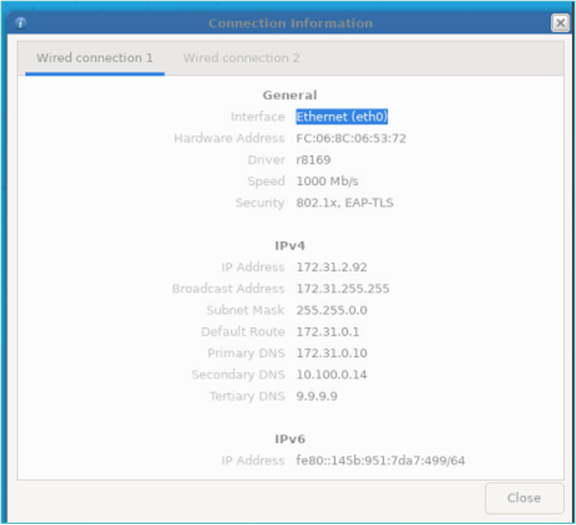
- The eth0 interface transitions from the Unsecured Red Network (
10.50.1.0) to the Secured White Network - Example secured IP address:
172.31.2.92 - Network security status will indicate 802.1X, EAP-TLS
At this point, the zTC is fully authenticated and operating on the secured network.
Result
The zTC successfully enrolls certificates using SCEP over an unsecured network and transitions to a secured, 802.1X-enabled network using EAP-TLS authentication.
End of Procedure