
-
SnapOS
-
-
- Articles coming soon
-
-
-
- Citrix HDX + USB Headset (Call-Center Baseline)
- OS/Firmware Update & Rollback
- Power Management and Session State
- Wi-Fi Roaming & Link Change Mid-Session
- Kiosk / Assigned-Access Auto-Launch
- Barcode Scanner (HID) with Line-of-Business App
- Printing to Local USB & Network Printers
- USB Device Management – Block Storage
- Multi-Monitor & 4K Performance
- Microsoft AVD/RDP + Teams Optimized Video
- VMware Horizon + Smart Card / CAC Login
-
-
-
-
zWAN
-
-
-
-
- Firewall & Layer 7 Application Filtering
- VPN Site-to-Site Tunnel Setup & Connectivity (z40 to Cloud vGR)
- Intrusion Prevention System (IPS) / Intrusion Detection System (IDS) Testing
- DNS Filtering
- DDoS Protection & Logging
- MAC Address Filtering & Geo-fencing
- Application Control & Protocol Blocking
- Authentication & Access Control (zID)
-
- WAN Link Failover & Load Balancing (ACI Mode)
- Dynamic Path Selection & Application-Aware Routing
- SaaS & Internet Breakout Validation
- QoS for Microsoft Teams (Datacenter vGR + Branch z40)
- Tunnel Failover (z40 ↔ vGR) — WAN00 (wired) primary, WAN03 (4G) & WAN04 (5G) backups
- IP Routing & Static Route Steering (z40 Branch)
- VLAN & Layer-2 Bridging
-
-
-
-
-
-
- Articles coming soon
-
-
-
-
- Articles coming soon
-
- Articles coming soon
-
-
-
-
-
-
- Articles coming soon
-
- Articles coming soon
-
- Articles coming soon
-
- Articles coming soon
-
-
-
-
-
- Articles coming soon
-
- Articles coming soon
-
- Articles coming soon
-
- Articles coming soon
-
-
-
-
-
- Articles coming soon
-
- Articles coming soon
-
- Articles coming soon
-
- Articles coming soon
-
-
- Articles coming soon
-
- IPsec Tunnel not Establishing
- SSL-VPN Tunnel not Establishing
- Mobile Network Issues
- Management Tunnel does not Establish
- DNS not Resolving from Local Network Appliance
- DNS Resolution Issues in Tunnel Configuration
- DHCP Server not Leasing IP to LAN PC
- Debugging EC Events - Unknown Status Issue
- Trusted-MAC Geofencing Issues
- DNS Issues from DC LAN PC
- Troubleshooting LAN Connectivity to Internet via WAN, Remote Branch LAN, or Local Branch LAN
- NetBalancer gateways displaying Faulty/Inactive
- Packet Drop Issues
-
-
zAccess
-
StorTrends
Print
How to add Director to Active Directory
LDAP Configuration Guide
Version 1.8.6 and Higher
1. LDAP Configuration
Login to zMan Director, navigate to right panel select settings icon, and click ZID-Login-ZTC. Refer screenshot.
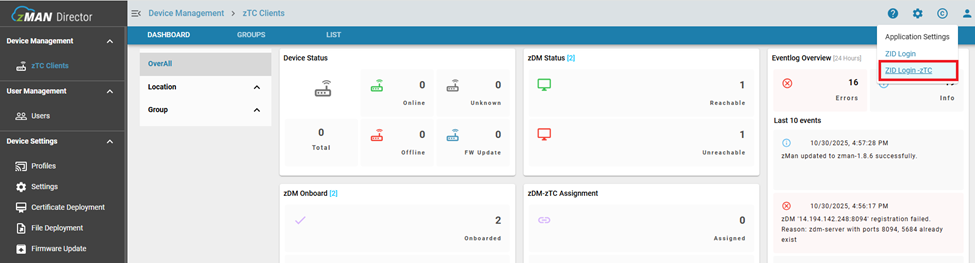
- Once logged in to zID follow below steps to configure AD/LDAP
- Under Configure section from left pane, select User Federation Refer below screen shot.

2. Select ldap from the Add director dropdown in right section
3. Provide the following data in the settings page:
- Enabled should be on
- Provide Console display name (default: ldap) and Priority (default: 0)
- Import users should be on
- Editmode should be writable (default: empty)
- Sync Registrations should be on (default: Off)
- Select Vendor as Active Directory
- Username LDAP attribute and RDN LDAP attribute will be provided as sAMAccountName
- Provide UUID LDAP attribute as objectGUID
- Provide User Object classes with all possible container classes of users we have in AD (eg: user)
4. Provide following data and do Test connection, the success will ensure that your active directory has been connect without any issues.

Provide Connection URL ldap://AD_IP:port (ex: ldap://10.200.42.0:389)
- Provide Users DN with full DN of LDAP tree with all ou and DN tree (eg: dc=amzvdi,dc=local)
Note: First dc="first portion of domain", Second dc="second portion of domain" (ex: dc=com or dc=local)
- Bind Type should be simple (default: simple)
- Enable StartTLS can be on/off. Select off for initial config
- Bind DN should be provided with DN of our LDAP Admin account (eg: cn=Administrator,cn=Users,dc=amzvdi,dc=local )
- Bind Credential should be provided with password to access LDAP Server(eg: ***)
- Custom User LDAP filter should be (&(objectCategory=Person)(sAMAccountName=*))
- Search Scope should be provided with Subtree
- Validate Password Policy and Trust Email can be left as it is.
- User Truststore SPI can be selected with Only for ldaps.
- Remaining settings can be left as default one.
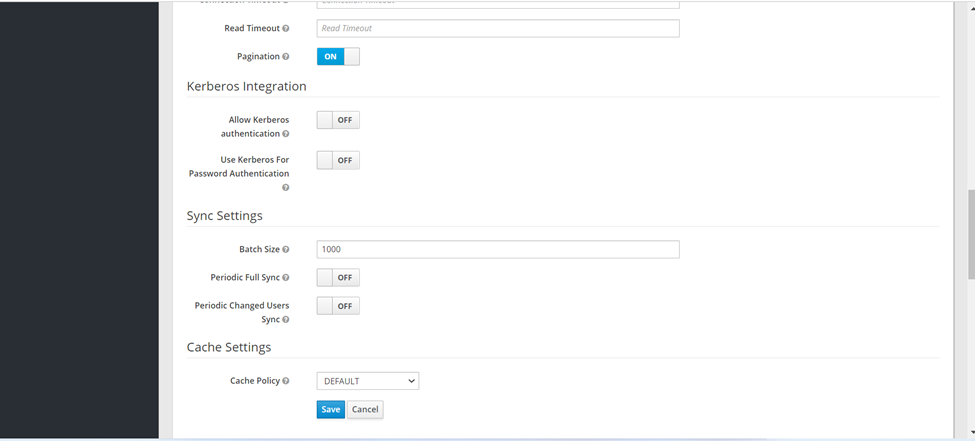
- Click Save to save the settings configured.
5. Now Click on Synchronize all users to update all LDAP users to be updated in DB.
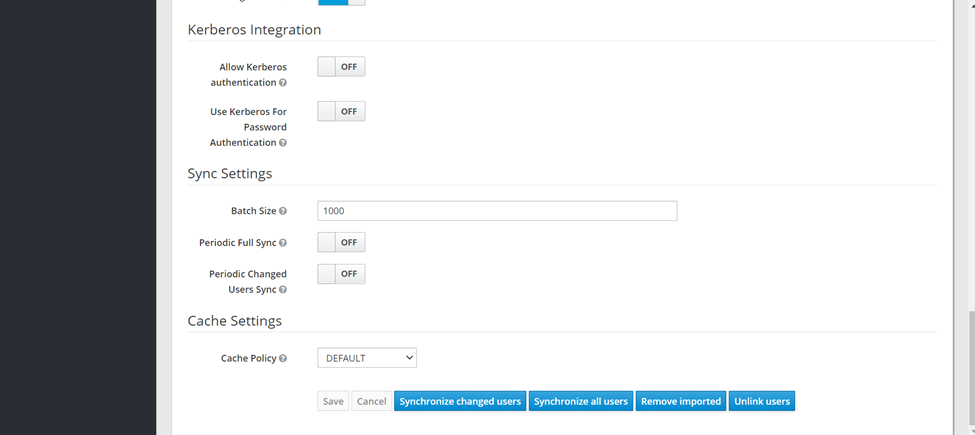
Table of Contents