
-
SnapOS
-
-
- Articles coming soon
-
-
-
- Citrix HDX + USB Headset (Call-Center Baseline)
- OS/Firmware Update & Rollback
- Power Management and Session State
- Wi-Fi Roaming & Link Change Mid-Session
- Kiosk / Assigned-Access Auto-Launch
- Barcode Scanner (HID) with Line-of-Business App
- Printing to Local USB & Network Printers
- USB Device Management – Block Storage
- Multi-Monitor & 4K Performance
- Microsoft AVD/RDP + Teams Optimized Video
- VMware Horizon + Smart Card / CAC Login
-
-
-
-
zWAN
-
-
-
-
- Firewall & Layer 7 Application Filtering
- VPN Site-to-Site Tunnel Setup & Connectivity (z40 to Cloud vGR)
- Intrusion Prevention System (IPS) / Intrusion Detection System (IDS) Testing
- DNS Filtering
- DDoS Protection & Logging
- MAC Address Filtering & Geo-fencing
- Application Control & Protocol Blocking
- Authentication & Access Control (zID)
-
- WAN Link Failover & Load Balancing (ACI Mode)
- Dynamic Path Selection & Application-Aware Routing
- SaaS & Internet Breakout Validation
- QoS for Microsoft Teams (Datacenter vGR + Branch z40)
- Tunnel Failover (z40 ↔ vGR) — WAN00 (wired) primary, WAN03 (4G) & WAN04 (5G) backups
- IP Routing & Static Route Steering (z40 Branch)
- VLAN & Layer-2 Bridging
-
-
-
-
-
-
- Articles coming soon
-
-
-
-
- Articles coming soon
-
- Articles coming soon
-
-
-
-
-
-
- Articles coming soon
-
- Articles coming soon
-
- Articles coming soon
-
- Articles coming soon
-
-
-
-
-
- Articles coming soon
-
- Articles coming soon
-
- Articles coming soon
-
- Articles coming soon
-
-
-
-
-
- Articles coming soon
-
- Articles coming soon
-
- Articles coming soon
-
- Articles coming soon
-
-
- Articles coming soon
-
- IPsec Tunnel not Establishing
- SSL-VPN Tunnel not Establishing
- Mobile Network Issues
- Management Tunnel does not Establish
- DNS not Resolving from Local Network Appliance
- DNS Resolution Issues in Tunnel Configuration
- DHCP Server not Leasing IP to LAN PC
- Debugging EC Events - Unknown Status Issue
- Trusted-MAC Geofencing Issues
- DNS Issues from DC LAN PC
- Troubleshooting LAN Connectivity to Internet via WAN, Remote Branch LAN, or Local Branch LAN
- NetBalancer gateways displaying Faulty/Inactive
- Packet Drop Issues
-
-
zAccess
-
StorTrends
Advanced Update
OVERVIEW:
A firmware patch update involves the process of applying modifications, fixes, or enhancements to the software components of the Operating system. These updates, presented as patches, encompass security enhancements, bug corrections, and the introduction of new features.
The update procedure is typically overseen through the system\'s package management system, ensuring that the software maintains a secure, stable, and current state.
STEPS TO BE FOLLOWED TO PERFORM PATCH UPDATE:
- Begin by navigating the to Local UI page, providing the appropriate login credentials. Upon successful login, navigate to Firmware->Update
- Enter all the required information for the firmware update.
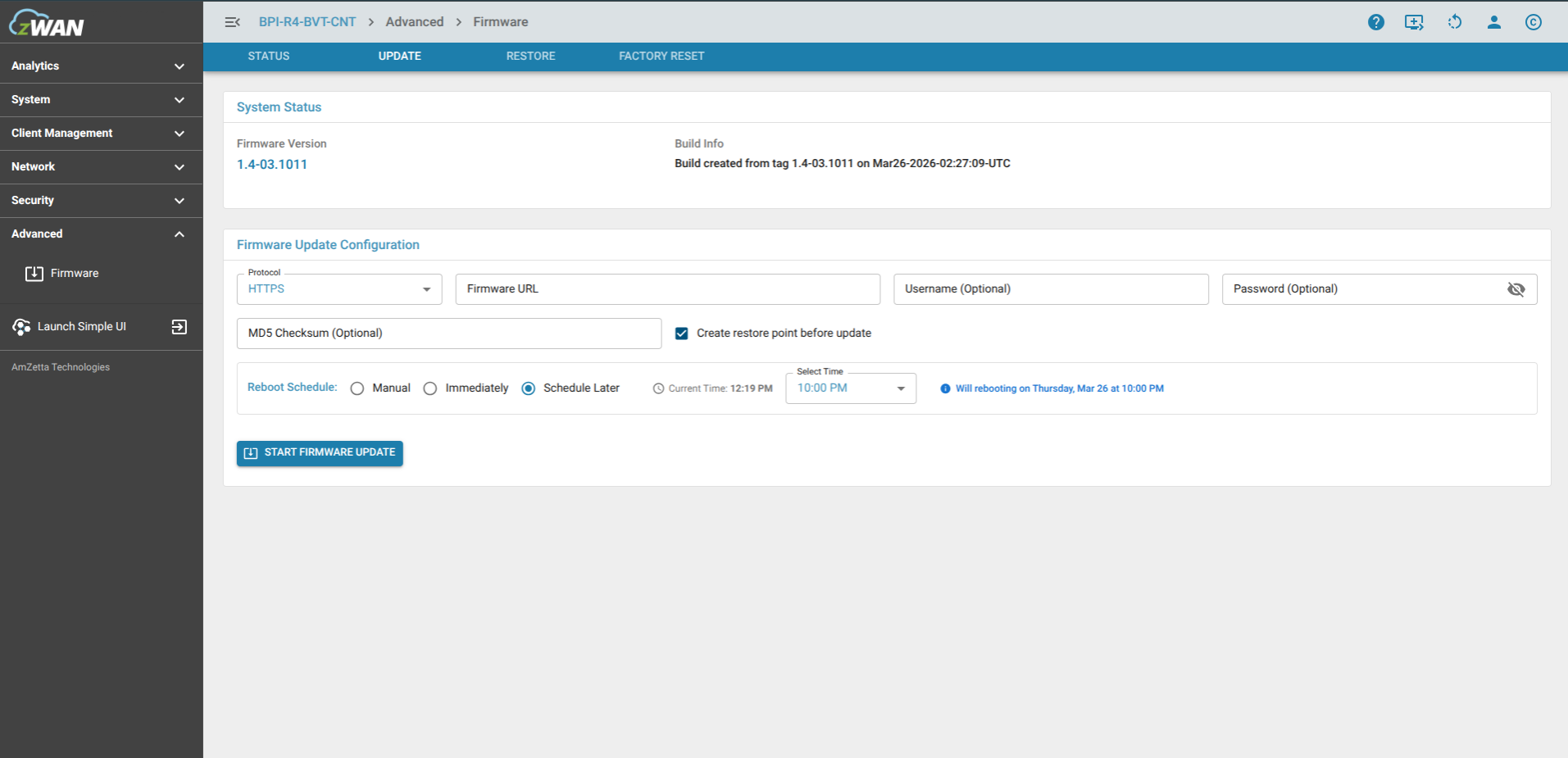
To configure the firmware update, please provide the following
information:
- Protocol Name: Choose a protocol for the update [ftp/scp/http/https]. For example, enter \'ftp\'.
- Server IP: Enter the IP address of the server where the firmware is located. For example, enter \'ussftp.amzetta.com\'.
- Port: Specify the port number for the connection. For example, enter \'21\'.
- Path: Enter the path to the firmware on the server. For example, enter \'/Release/Patch\'.
- Image File Name: Provide the name of the firmware image file. For example, enter \'cpe-fw-package-1.3-05.1021-August13-2025-120951.bin\'.
- Backup Current Firmware: Indicate whether to back up the current firmware (true/false). For example, enter \'true\' if you want to backup.
- Server Username: Enter the username for accessing the server.
- Server Password: Enter the password for accessing the server. (Your input will not be visible.)
After providing each piece of information and clicking Submit, press Enter to proceed to the next prompt. The patch file will start downloading, and once the
patch file is downloaded, the patch update process will begin.
REBOOT SCHEDULE OPTIONS:

The firmware update process supports different reboot behaviors based on user selection in the UI:
- Manual:
The firmware image will be downloaded and applied, but the system will not reboot automatically after the update. A manual reboot is required to complete the update process. - Immediately:
The firmware image will be downloaded and applied, and the system will automatically reboot immediately after the update is completed. No user intervention is required.

- Schedule Later:
The firmware image will be downloaded and applied, and the system reboot will occur at a user-defined scheduled time.
The selected schedule will be displayed in the UI (for example: Will reboot on Friday, Mar 27 at 12:00 AM).
The current system time is also shown in the UI and should be referred before selecting the schedule to avoid incorrect timing.
This option is useful for aligning the reboot with maintenance windows.
Note:
- Firmware download and update process is non-interactive and runs in the background.
- Reboot behavior strictly depends on the selected reboot option.
- Ensure system date and time are correctly configured before using the scheduled reboot option.
DOWNLOAD PROGRESS INDICATOR:

During the firmware update process, a progress bar will be displayed in the UI indicating the patch file download status.
- The progress bar shows the percentage of download completed.
- It also displays the data transferred (e.g., 643.00MB / 862.00MB).
- This helps in monitoring the download progress in real time.
Note:
It is crucial to perform firmware updates with caution, ensuring that all necessary information is accurately provided during the process to prevent any disruptions or errors.