
DHCP-Static IP-MAC-User, Identity-Driven Network Management System User Guide
Overview
This User Guide explains the DHCP-Static IP-MAC-User, identity-driven network management system designed for campus environments.
The solution provides:
- Bulk management of Static IP–MAC–User–Group mappings
- Strong anti-MAC spoofing and randomized MAC detection
- Policy enforcement using IP-User/ IPSet / MACSet / IP+MAC bindings
- Analytics, reporting, and alerting for security events
Architecture
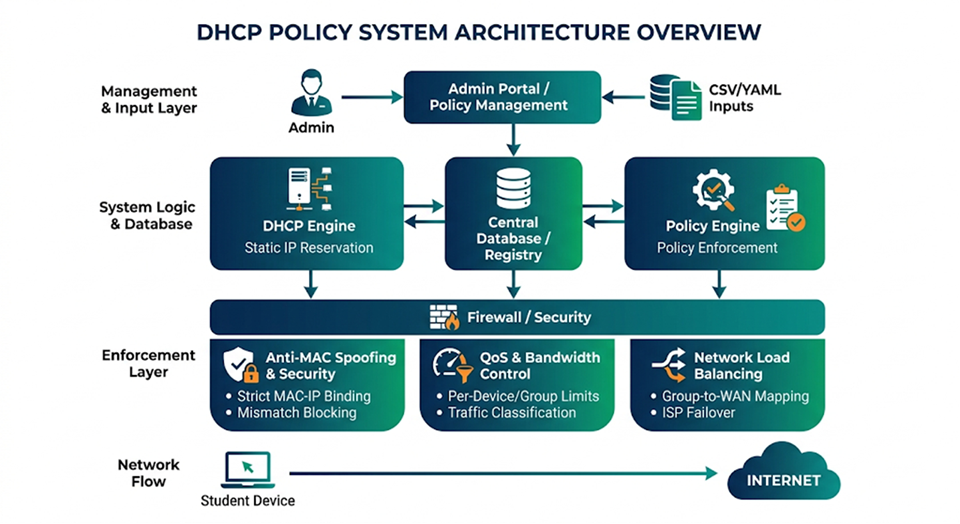
Static IP-MAC Reservation Management
Bulk IP-MAC reservations with user information can be updated using the Import option available in the IP-MAC Reservation tab on the DHCP page.
Network administrators can download the CSV template file from the UI, update the required fields, and upload it back into the system.
CSV Import Format
The following fields are supported in the CSV template:
| Field Name | Description |
|---|---|
| IP Address | Static IP address to assign (optional) |
| MAC Address | Unique client MAC address |
| Subnet | Subnet from which a free IP should be allocated if the IP address is not provided |
| User ID | Unique user identifier |
| User Name | User name associated with the device |
| Group Name | Group name used for policy enforcement |
| Group ID | Unique group identifier |
| Hostname | Device hostname |
Notes
- If the IP address is known, provide the IP address directly.
- If the IP address is not known, leave the IP field empty and provide the subnet. The system will automatically allocate a free IP from the specified subnet.
- Each MAC address must be unique.
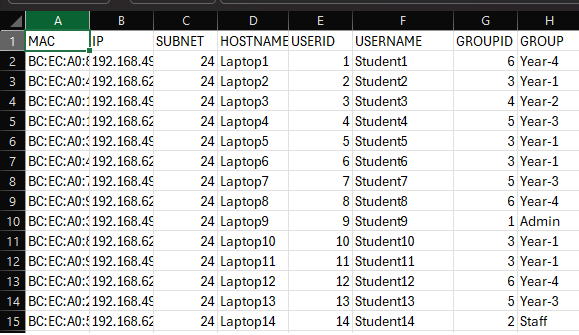
Individual / Bulk Reservation Management
Network administrators can add individual reservation entries manually or use the import option to add multiple entries in bulk.
The imported user information is used to enrich analytics, reporting, and policy management.
Group information is used to apply policies to users belonging to specific groups.
Supported Functionalities
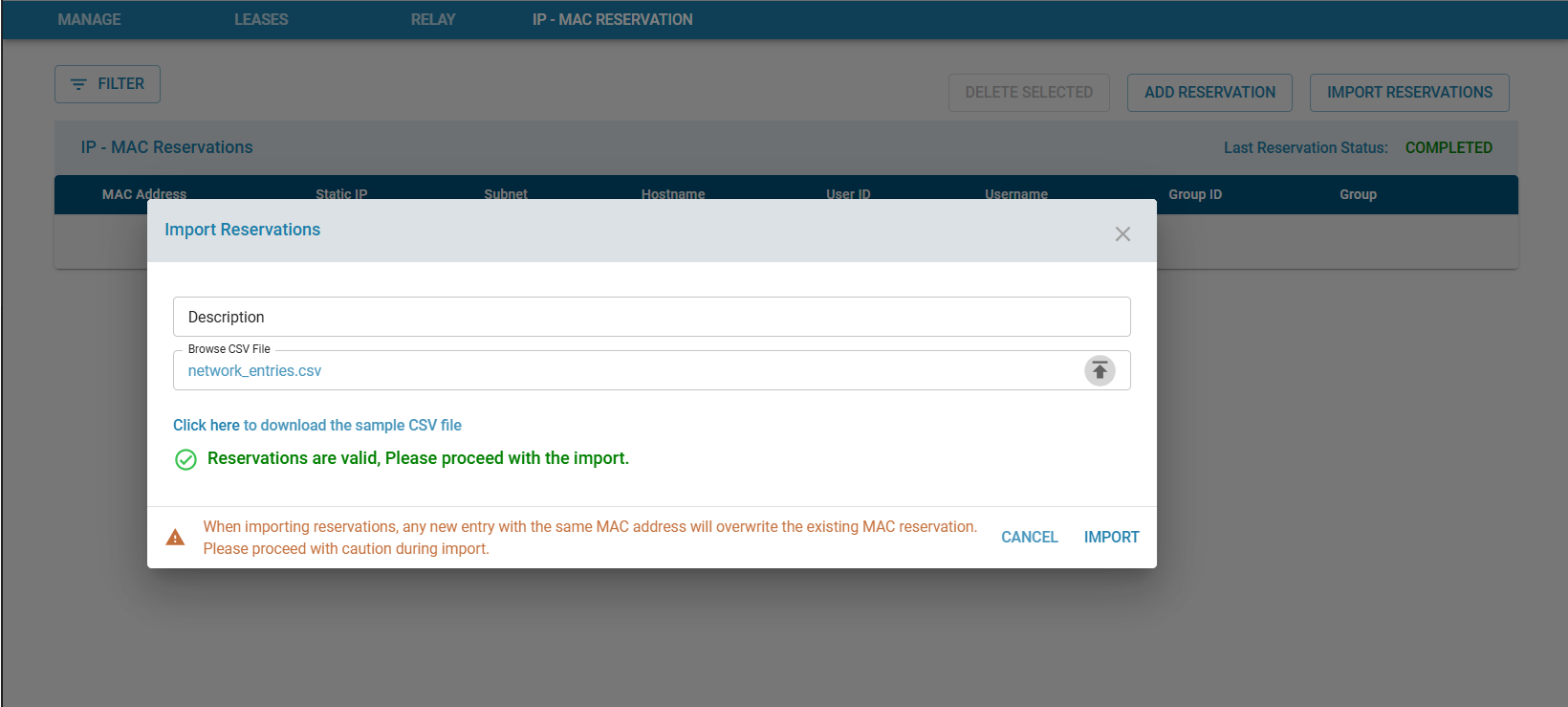
1. Import Reservation
Allows network administrators to bulk import Static IP-MAC reservations along with user and group information.
Use the IMPORT RESERVATIONS button to upload a CSV file containing reservation configurations.
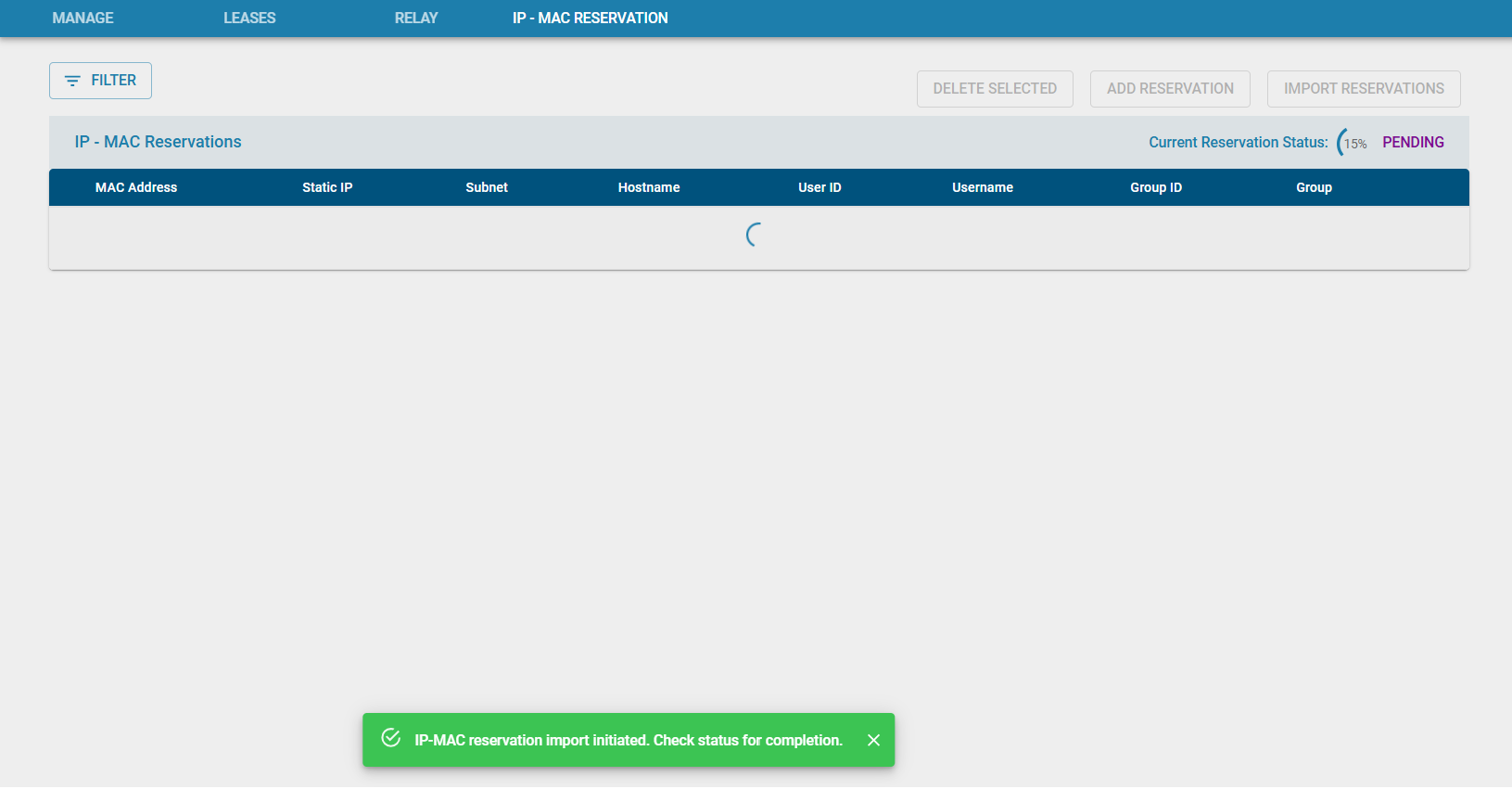
2. IP-MAC Reservation Operation Status
Once an import, add, edit, or delete operation is initiated, the UI displays the operation status while the configuration is being applied on the edge controller.
The status includes:
- Successful completion
- Failed status
- Error messages
- Validation errors
- Progress percentage
- Last updated time
3. Add IP-MAC Reservation
Allows network administrators to manually create a single Static IP-MAC reservation entry.
The available fields include:
IP Address   -> Static IP address to assign (optional)
MAC Address  -> Unique client MAC address
Subnet       -> Subnet from which a free IP should be allocated if IP is not provided
User ID      -> Unique user identifier
User Name    -> User name associated with the device
Group Name   -> Group name for policy enforcement
Group ID     -> Unique group identifier
Hostname     -> Device hostname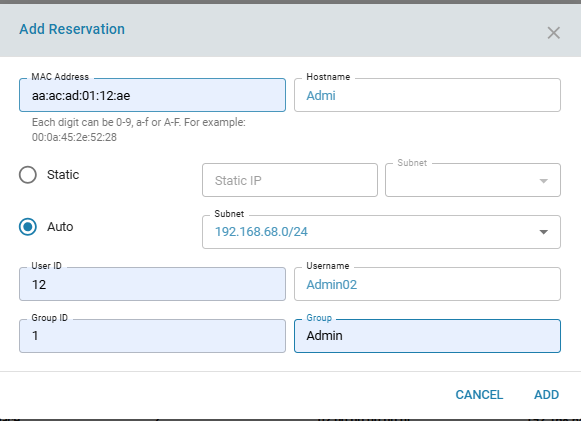
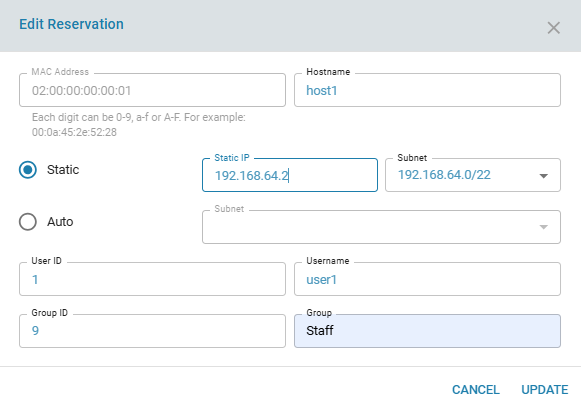
4. Edit IP-MAC Reservation
Allows network administrators to modify an existing reservation entry.
Editable fields include:
- IP Address
- User Name
- Group Information
- Hostname
Refer the bottom section 'Editing Behavior Rules' for more description.
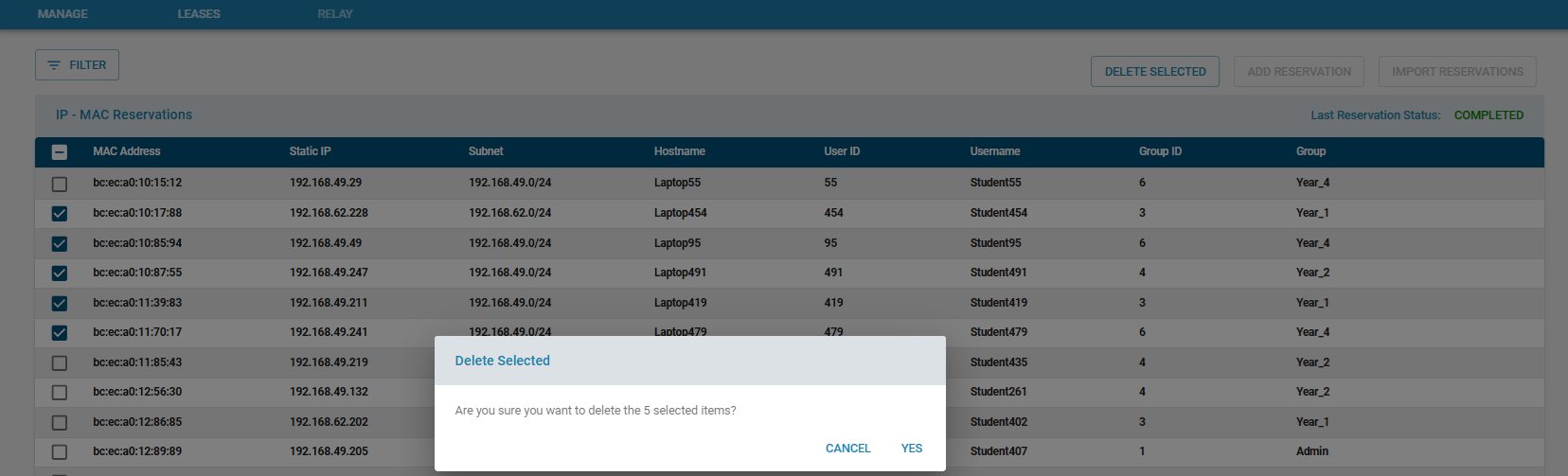
5. Delete IP-MAC Reservation
Allows network administrators to delete single or multiple existing Static IP-MAC reservations.
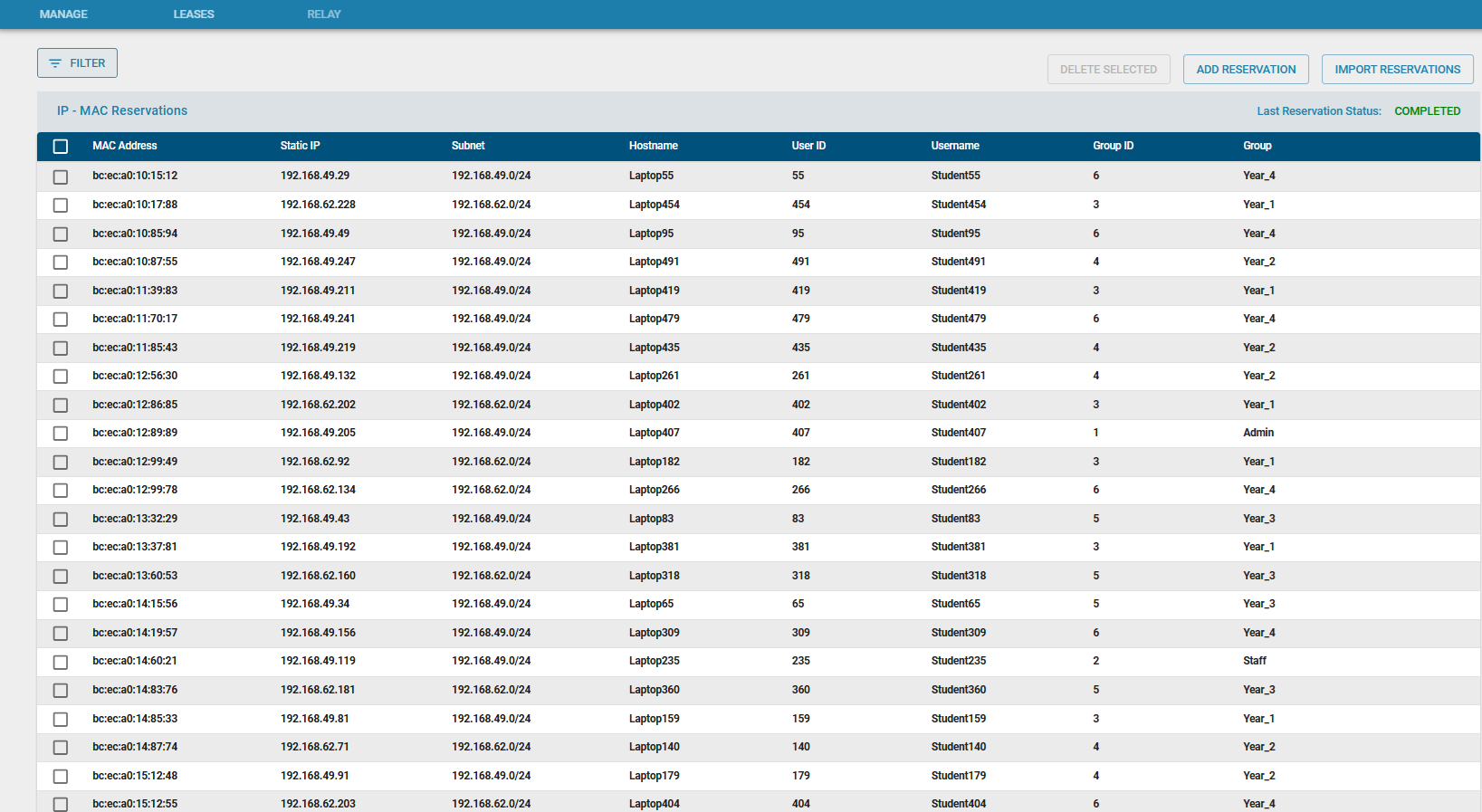
6. List IP-MAC Reservations
Displays all available IP-MAC reservations along with associated user information.
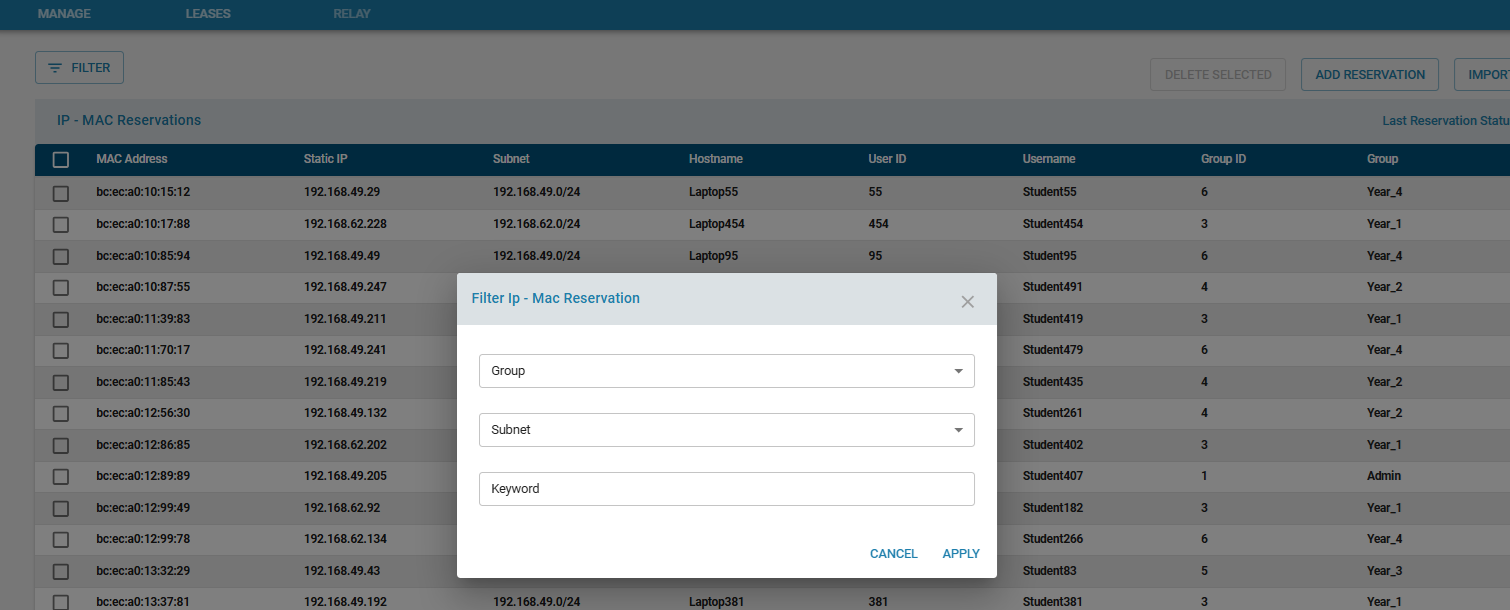
7. Filter IP-MAC Reservations
Network administrators can filter IP-MAC reservation entries using multiple search criteria to simplify management and troubleshooting.
Supported filters include:
- Group Name
- Subnet
- Keywords pertaining to User Information
This functionality helps administrators quickly locate reservation entries within large-scale deployments.
Policy Management Integration
8. IPSET / MACSET Integration for Policy Management
Once the bulk import operation is successfully completed, the system automatically creates group-based:
- IPSETs
- MACSETs
- MAC-IP-SETs
Additionally, the system creates:
- Global Trusted MACSET
- Global Trusted IP-MAC Binding Set
These sets are used internally for:
- Policy enforcement
- MAC spoofing prevention
- Network access validation
- QoS and firewall and load balancing integration
The following sections describe how these sets are used within the system.
8.1 IPSET
The generated IPSETs are visible under the IPSET section.
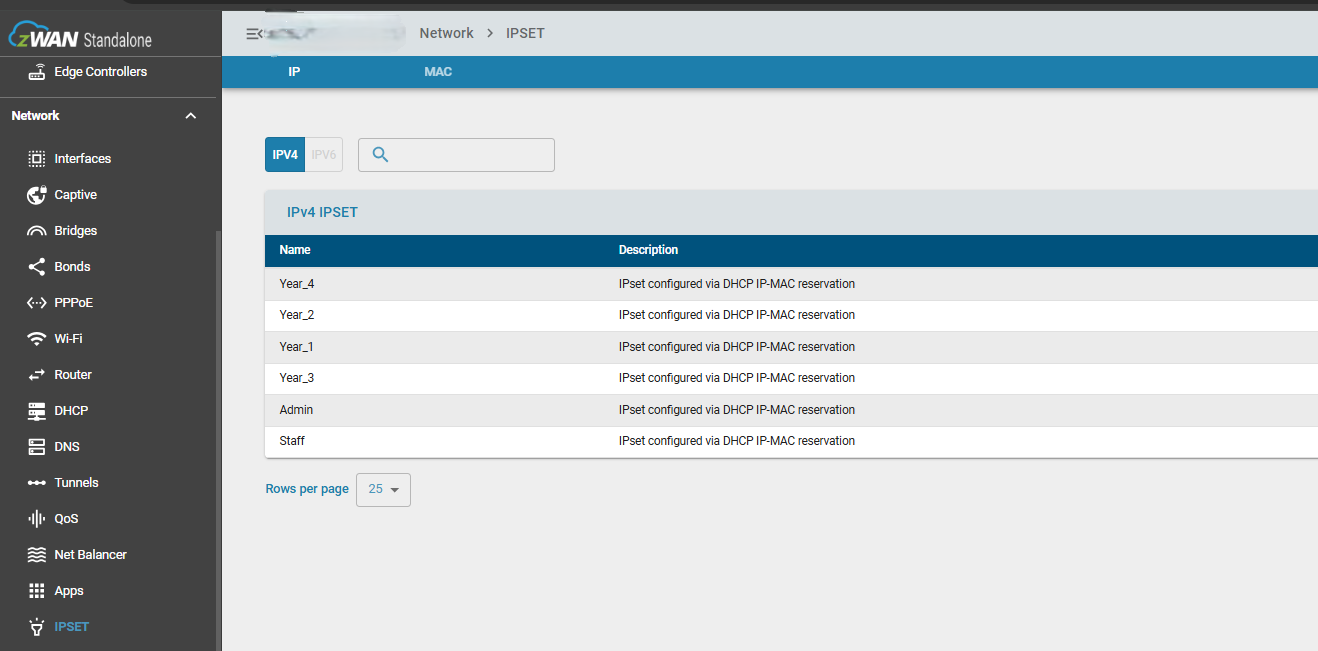
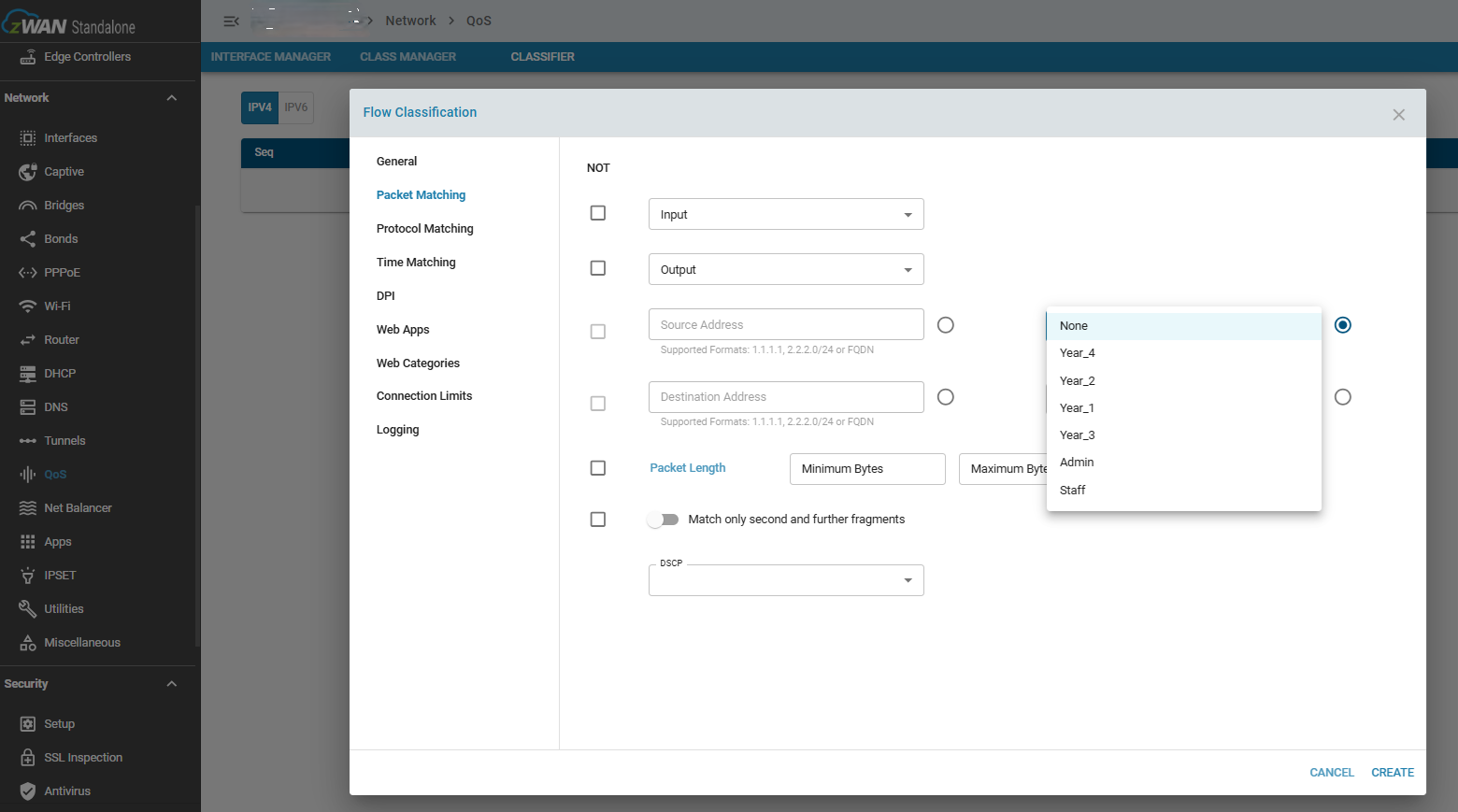
These IPSETs can be directly used in QoS Classifier rules for bandwidth management and traffic prioritization policies.
Example:
8.2 MACSET / MAC-IP-SET
The generated MACSETs and MAC-IP-SETs are visible under the corresponding IPSET-> MACSET management section.
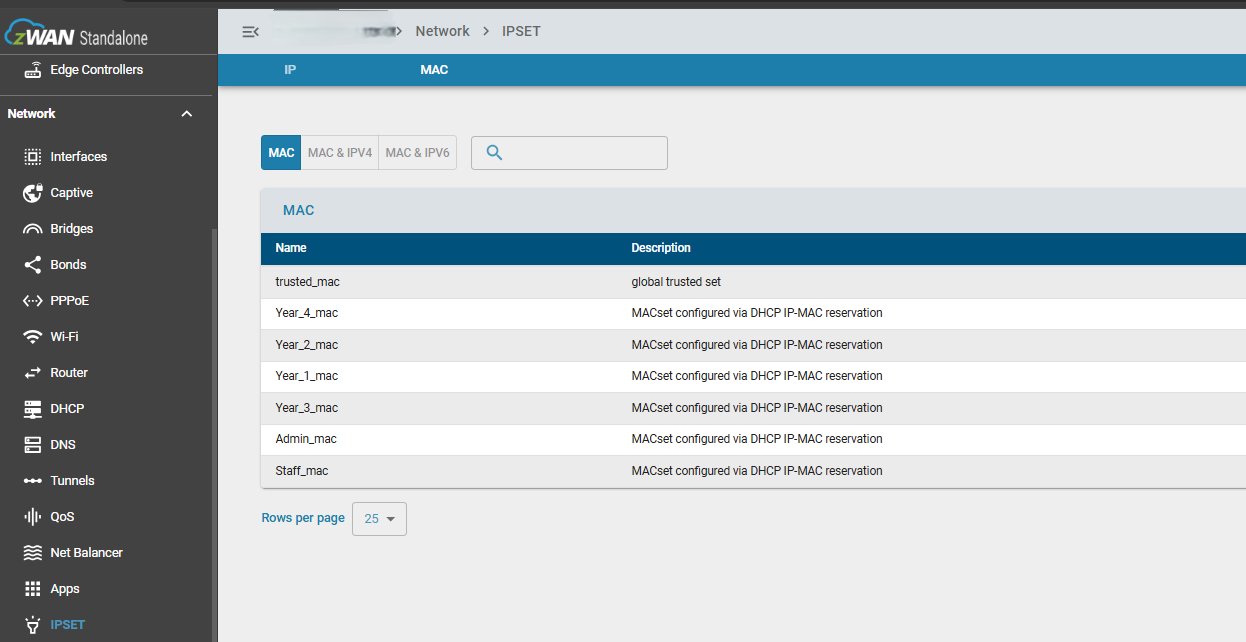
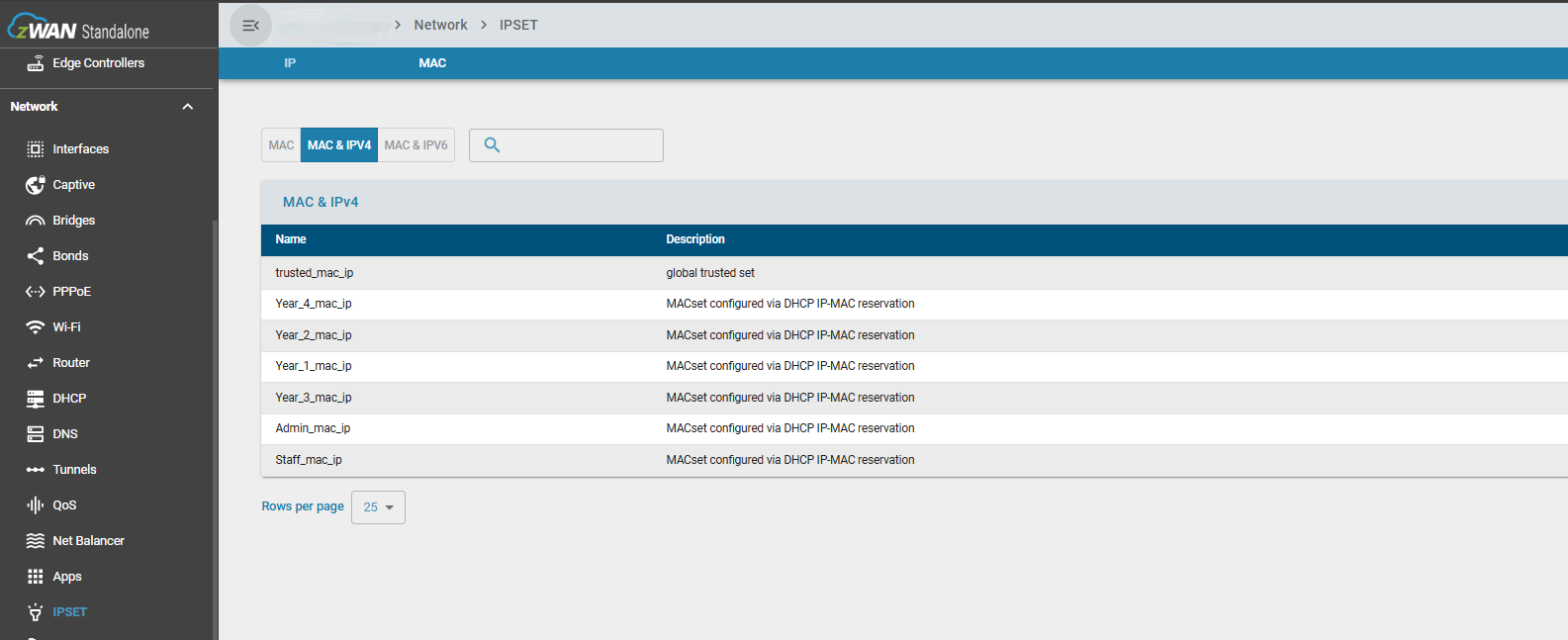
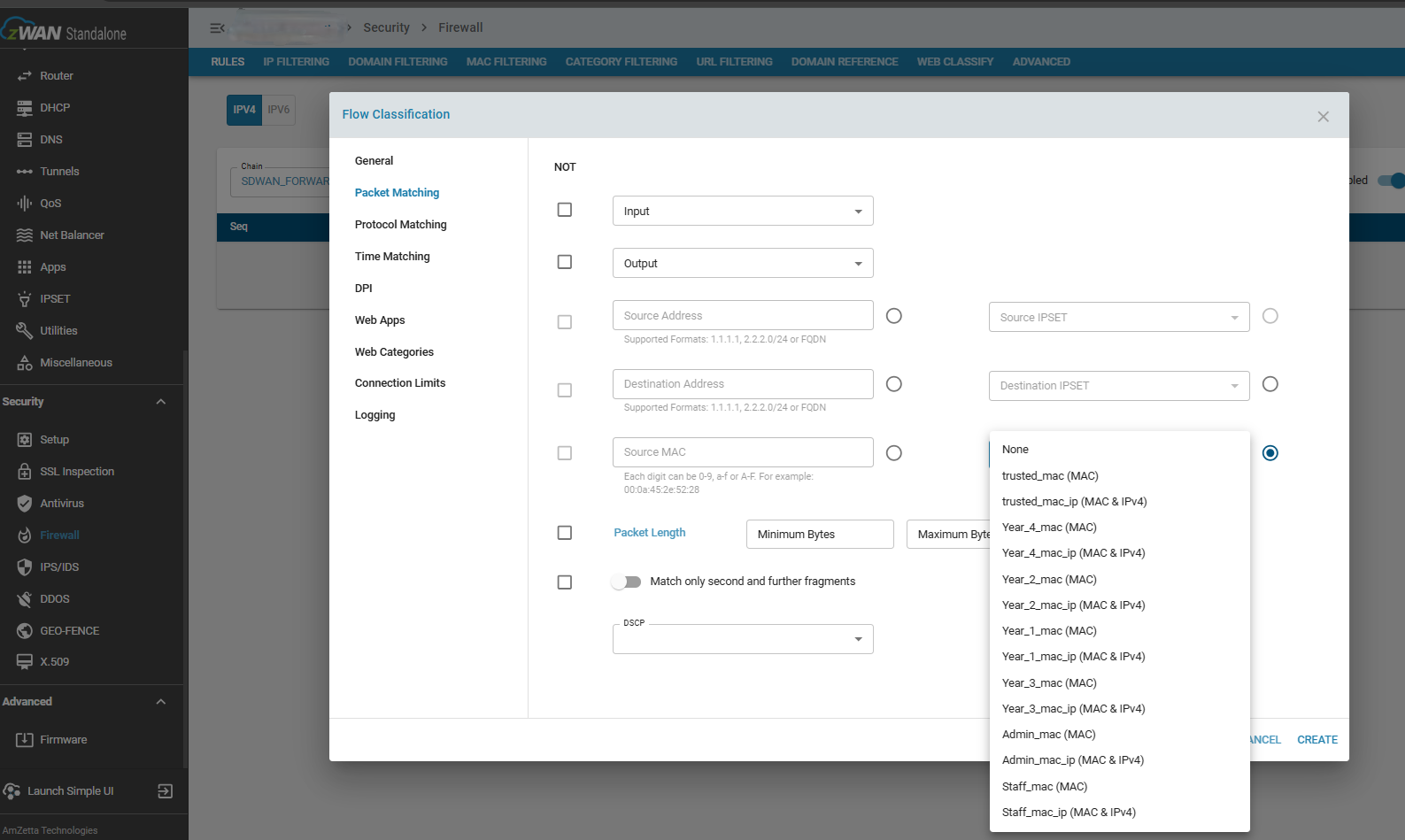
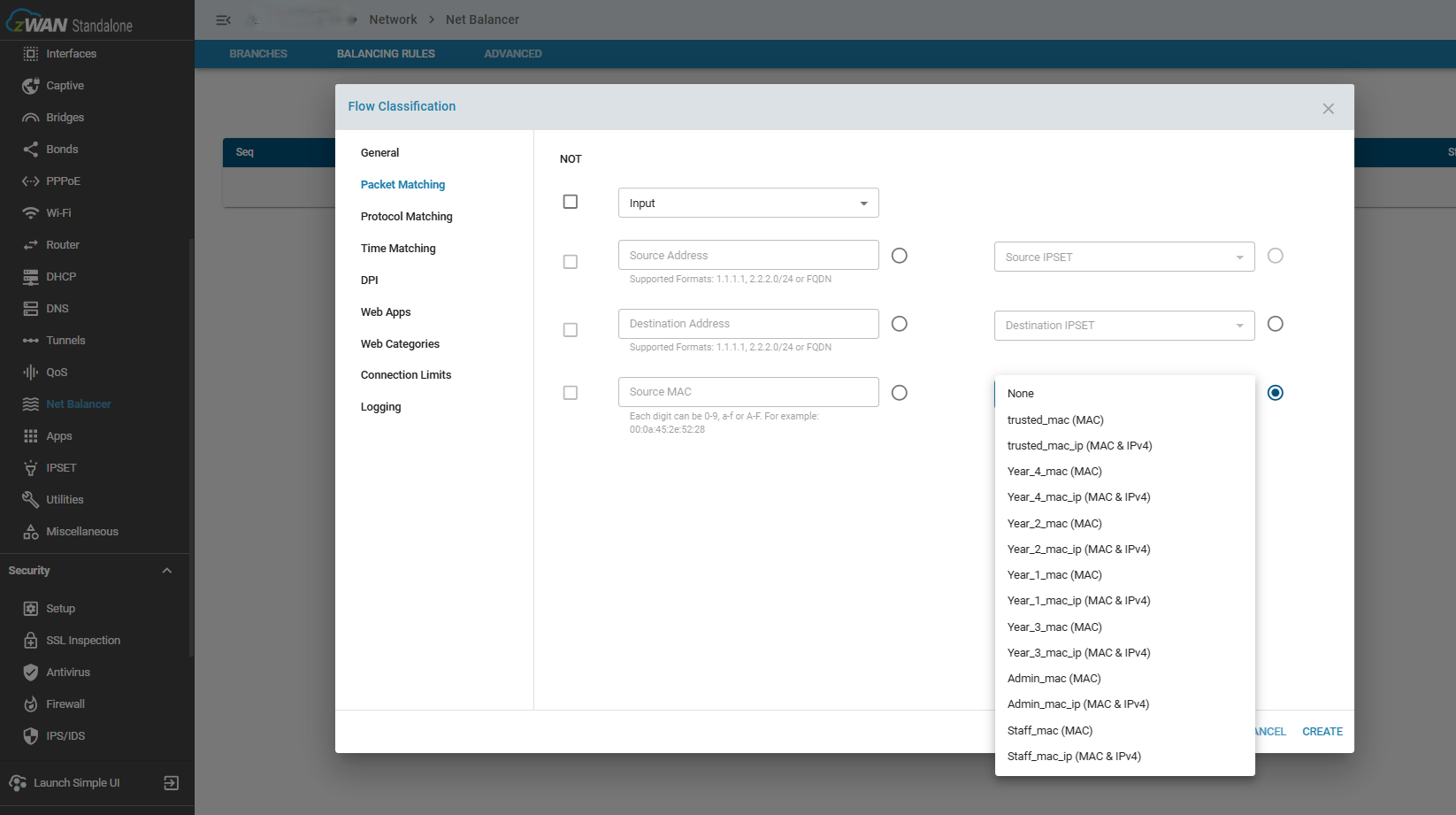
These sets can be used in:
- Firewall policies
- Network load balancing rules
- Access control policies
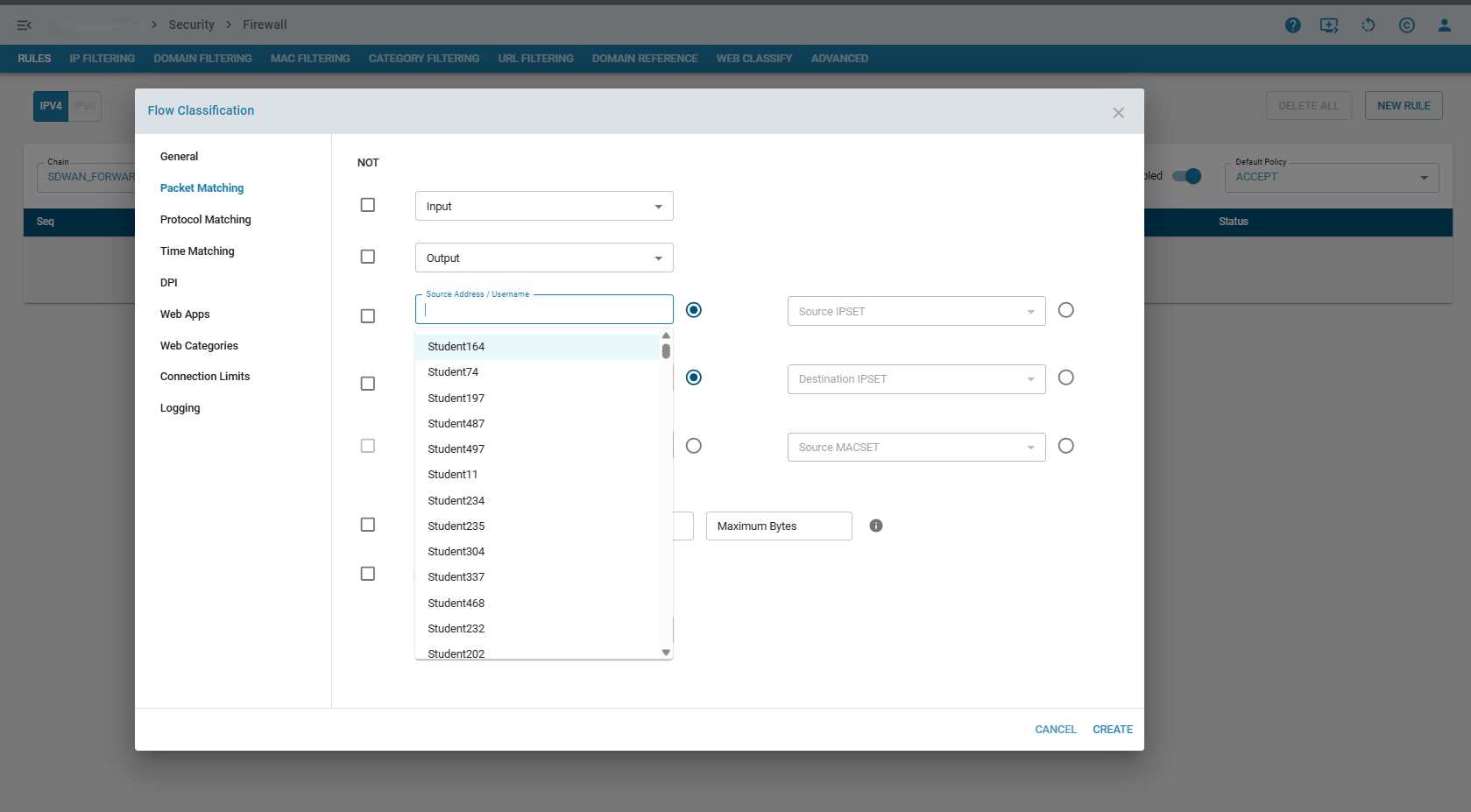
Example Firewall policy usage:
Example NetBalancer policy usage:
Security Features
9. MAC Spoofing Detection
Based on the configured IP-MAC bindings, the system automatically creates a global trusted MAC-IP set.
If a device attempts network access using an IP-MAC combination that does not match the trusted bindings:
- The traffic is blocked
- A security alert is generated
- The event is logged for auditing and monitoring purposes
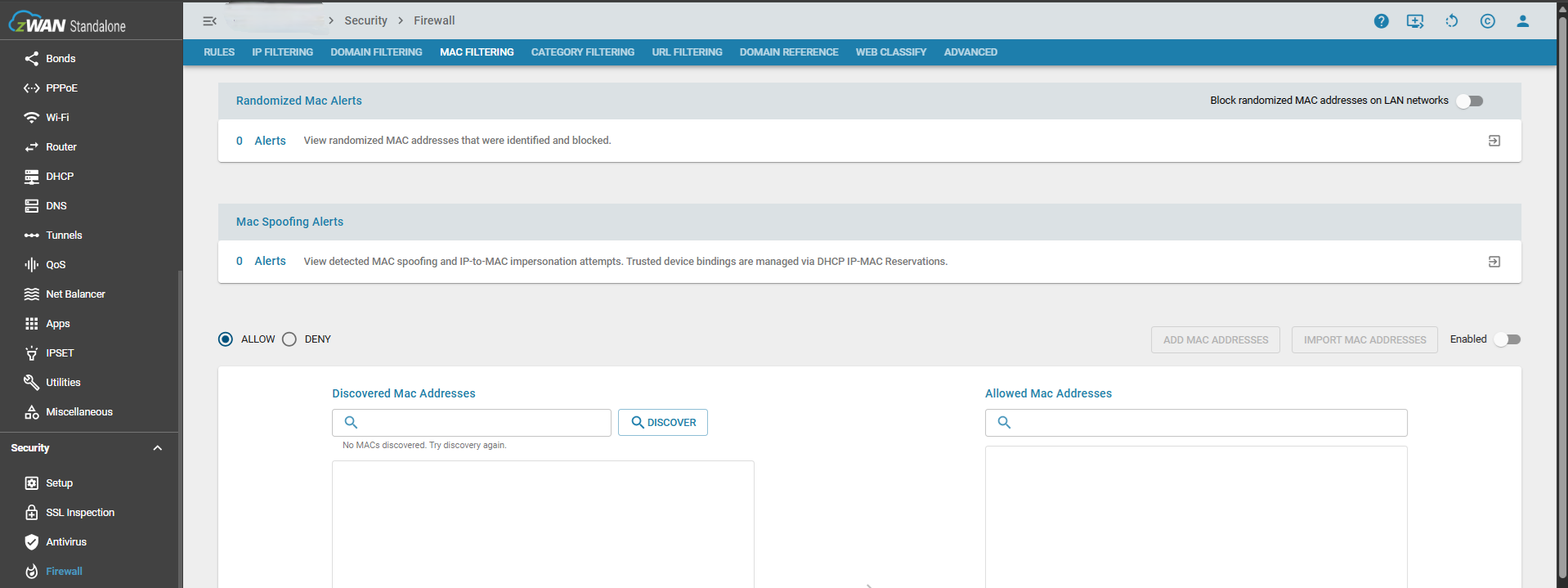
Detected MAC spoofing or randomized MAC events are displayed under:
Firewall → MAC Filtering
This system manages static IP assignments for devices in a controlled and consistent manner.
It ensures:
- No IP conflicts
- No duplicate device identities
- Consistent user grouping
- Reliable network mapping
10 🧭 DHCP Reservation Rules (What you can and cannot do)
👤 User Identity Rules
    User ID is permanently assigned and cannot be changed
    Username can be duplicated across users and groups
    Username and User ID should not have spaces
    A single User ID can have multiple devices
    User ID is the primary identity key across the system
    Username ↔ User D consistency:
        All devices sharing the same User ID must have the same Username.
        Changing it for a multi-device user requires updating ALL of that user's devices in the same request.
💻 Device Rules
    Each device must have a unique MAC address
    MAC Address can be colon or hyphen format (aa:bb:cc:dd:ee:ff or aa-bb-cc-dd-ee-ff), case-insensitive. Normalized internally to lowercase colon form.
    Each MAC address is immutable once created
    Each device must have a unique hostname (global uniqueness)
    Hostname can be updated per device
    Hostname should not have spaces
    Each device can have only one IP at a time
🌐 Network / IP Rules
    An IP address can only belong to one device at a time
    IP changes are allowed only if the new IP is free
👥 Group Rules
    Groups are defined by a Group Name + Group ID pair
    Each Group Name must map to exactly one Group ID
    A user cannot be split across multiple groups
🔄 Group Change Behavior
    ✔ If user has ONLY ONE device → group can be updated directly
    ✔ If user has MULTIPLE devices → ALL devices must be updated together
    ❌ Partial group update for multi-device users is not allowed
11 ✅ What You Can Do
    ✔ Add new device reservations
    ✔ Import multiple devices (bulk upload)
    ✔ Edit hostname of a device — anytime, no bulk needed
    ✔ Edit IP of a device — anytime, if the new IP is free
    ✔ Edit username — anytime, as long as ALL of that user's devices are updated together if they have more than one device
    ✔ Move a single-device user to another group directly
    ✔ Move a multi-device user to another group — via bulk update including all their devices
    ✔ Add multiple devices under the same existing User ID
    ✔ Enter MAC addresses with either : or - separators
12 ❌ What You Cannot Do
❌Change a User ID after the record is created
❌Change a MAC Address after the device is created
❌Assign the same IP to two devices
❌Use a duplicate hostname across devices
❌Split one user's devices across multiple groups
❌Update only part of a multi-device user's devices during a group change
❌Update only part of a multi-device user's devices during a username change
❌Remap an existing Group ID to a different Group Name, or vice versa
13 ✏️ Editing Behavior Rules
When editing a device:
| Field | Editable? | Notes |
|---|---|---|
| User ID | ❌ Locked | Delete & recreate to change |
| MAC | ❌ Locked | Delete & recreate to change |
| Hostname | ✔ Per device | Must remain globally unique |
| IP | ✔ Per device | Must be free/unassigned |
| Username | ✔ Per device, BUT... | All devices for the same User ID must match — bulk required if changing for a multi-device user |
| Group | ✔ Direct if 1 device / Bulk if multiple | All devices must move together |
14 🔄 Moving Users Between Groups — Step by Step
To move a user:
1. Update the Group Name + Group ID pair together (never just one)
2. System validates the name↔id pairing is still consistent (G1)
3. If the user has multiple devices → all must be included in the request
4. If the user has one device → direct update is allowed
5. Partial updates are rejected for multi-device users
15 ✏️ Renaming a User (Username Change) — Step by Step
    1. Username can be changed anytime for a single-device user — no extra steps
    2. For a multi-device user, the rename must include ALL of that user's existing devices in the same request
    3. If only some devices are included, the system will reject the request and flag the mismatch — this is also the safety net that catches a possible wrong/mistyped User ID being used for a new device
    4. If you see a "username mismatch" error and you did NOT intend to rename anyone, double-check the User ID you entered — it likely already belongs to someone else