
-
SnapOS
-
-
- Articles coming soon
-
-
-
- Citrix HDX + USB Headset (Call-Center Baseline)
- OS/Firmware Update & Rollback
- Power Management and Session State
- Wi-Fi Roaming & Link Change Mid-Session
- Kiosk / Assigned-Access Auto-Launch
- Barcode Scanner (HID) with Line-of-Business App
- Printing to Local USB & Network Printers
- USB Device Management – Block Storage
- Multi-Monitor & 4K Performance
- Microsoft AVD/RDP + Teams Optimized Video
- VMware Horizon + Smart Card / CAC Login
-
-
-
-
zWAN
-
-
-
-
- Firewall & Layer 7 Application Filtering
- VPN Site-to-Site Tunnel Setup & Connectivity (z40 to Cloud vGR)
- Intrusion Prevention System (IPS) / Intrusion Detection System (IDS) Testing
- DNS Filtering
- DDoS Protection & Logging
- MAC Address Filtering & Geo-fencing
- Application Control & Protocol Blocking
- Authentication & Access Control (zID)
-
- WAN Link Failover & Load Balancing (ACI Mode)
- Dynamic Path Selection & Application-Aware Routing
- SaaS & Internet Breakout Validation
- QoS for Microsoft Teams (Datacenter vGR + Branch z40)
- Tunnel Failover (z40 ↔ vGR) — WAN00 (wired) primary, WAN03 (4G) & WAN04 (5G) backups
- IP Routing & Static Route Steering (z40 Branch)
- VLAN & Layer-2 Bridging
-
-
-
-
-
-
- Articles coming soon
-
-
-
-
- Articles coming soon
-
- Articles coming soon
-
-
-
-
-
-
- Articles coming soon
-
- Articles coming soon
-
- Articles coming soon
-
- Articles coming soon
-
-
-
-
-
- Articles coming soon
-
- Articles coming soon
-
- Articles coming soon
-
- Articles coming soon
-
-
-
-
-
- Articles coming soon
-
- Articles coming soon
-
- Articles coming soon
-
- Articles coming soon
-
-
- Articles coming soon
-
- IPsec Tunnel not Establishing
- SSL-VPN Tunnel not Establishing
- Mobile Network Issues
- Management Tunnel does not Establish
- DNS not Resolving from Local Network Appliance
- DNS Resolution Issues in Tunnel Configuration
- DHCP Server not Leasing IP to LAN PC
- Debugging EC Events - Unknown Status Issue
- Trusted-MAC Geofencing Issues
- DNS Issues from DC LAN PC
- Troubleshooting LAN Connectivity to Internet via WAN, Remote Branch LAN, or Local Branch LAN
- NetBalancer gateways displaying Faulty/Inactive
- Packet Drop Issues
-
-
zAccess
-
StorTrends
Update zMan Director ISO Deployment
Supported Version
This update process applies to the following deployment type:
zman-2.0.x - ISO based deploymentOverview
This article explains how to update a zMan Director ISO-based deployment to a newer zMan version. To update zMan Director, log in to the zMan Director ISO-installed system through SSH, exit the zMan Console Menu, copy the deployment update package to the system, extract the package, and run the deployment update script.
After the update completes, log out of zMan Director and log back in. Existing settings and profiles should remain available after the update.
Log In to the zMan Director System
-
Connect to the zMan Director ISO-installed system through SSH.
-
Log in using the appropriate root credentials.
User: root
Password: <root-password>-
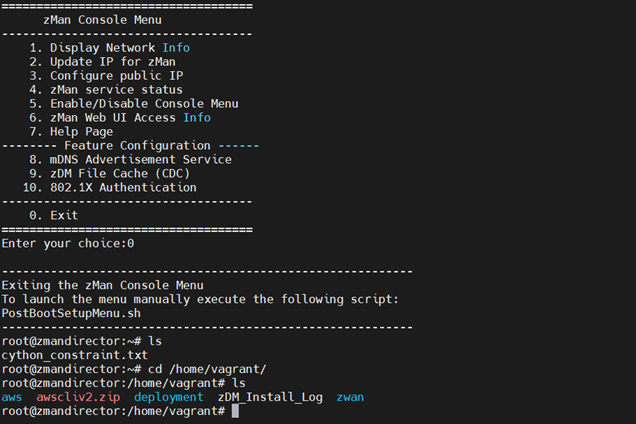
After login, the zMan Console Menu appears.
-
Enter
0to select Exit.
Switch to the Vagrant Directory
After exiting the zMan Console Menu, switch to the /home/vagrant/ directory.
cd /home/vagrant/Download and Extract the Deployment Update Package
-
Download the deployment update tar file from the provided FTP location.
-
Copy the tar file to the desired location inside the zMan Director system.
The deployment update package should use the following naming format:
deployment-zman-2.0.x.tar- Extract the contents of the tar file.
tar -xvf deployment-zman-2.0.x.tar- After extraction, navigate to the setup directory.
cd deployment-zman-2.0.x/setupRun the Deployment Update Script
Once inside the setup directory, run the deployment update script.
./setup_deploy_update.sh
Important Note
The previous zMan directory must already exist on the system.
The installer validates the previous zMan path before continuing. If the specified directory does not exist, the update process stops with an error.
Confirm the Update Completed Successfully
When the update script finishes successfully, zMan Director is updated to the new version.

Log Back In to zMan Director
After the update completes:
-
If you are already logged in to zMan Director, log out.
-
Open a browser.
-
Log back in to zMan Director using your credentials.
Verify Existing Settings and Profiles
After logging back in, verify that the previous zMan settings and profiles are still available.
Additional Tenant Note
During a zMan update, the internal zDM for the default zman-tenant is updated automatically.
If the environment has an additional tenant, a separate zDM instance exists for that tenant. The corresponding zDM must also be updated to the latest version to ensure proper zMan functionality.