
-
SnapOS
-
-
- Articles coming soon
-
-
-
- Citrix HDX + USB Headset (Call-Center Baseline)
- OS/Firmware Update & Rollback
- Power Management and Session State
- Wi-Fi Roaming & Link Change Mid-Session
- Kiosk / Assigned-Access Auto-Launch
- Barcode Scanner (HID) with Line-of-Business App
- Printing to Local USB & Network Printers
- USB Device Management – Block Storage
- Multi-Monitor & 4K Performance
- Microsoft AVD/RDP + Teams Optimized Video
- VMware Horizon + Smart Card / CAC Login
-
-
-
-
zWAN
-
-
-
-
- Firewall & Layer 7 Application Filtering
- VPN Site-to-Site Tunnel Setup & Connectivity (z40 to Cloud vGR)
- Intrusion Prevention System (IPS) / Intrusion Detection System (IDS) Testing
- DNS Filtering
- DDoS Protection & Logging
- MAC Address Filtering & Geo-fencing
- Application Control & Protocol Blocking
- Authentication & Access Control (zID)
-
- WAN Link Failover & Load Balancing (ACI Mode)
- Dynamic Path Selection & Application-Aware Routing
- SaaS & Internet Breakout Validation
- QoS for Microsoft Teams (Datacenter vGR + Branch z40)
- Tunnel Failover (z40 ↔ vGR) — WAN00 (wired) primary, WAN03 (4G) & WAN04 (5G) backups
- IP Routing & Static Route Steering (z40 Branch)
- VLAN & Layer-2 Bridging
-
-
-
-
-
-
- Articles coming soon
-
-
-
-
- Articles coming soon
-
- Articles coming soon
-
-
-
-
-
-
- Articles coming soon
-
- Articles coming soon
-
- Articles coming soon
-
- Articles coming soon
-
-
-
-
-
- Articles coming soon
-
- Articles coming soon
-
- Articles coming soon
-
- Articles coming soon
-
-
-
-
-
- Articles coming soon
-
- Articles coming soon
-
- Articles coming soon
-
- Articles coming soon
-
-
- Articles coming soon
-
- IPsec Tunnel not Establishing
- SSL-VPN Tunnel not Establishing
- Mobile Network Issues
- Management Tunnel does not Establish
- DNS not Resolving from Local Network Appliance
- DNS Resolution Issues in Tunnel Configuration
- DHCP Server not Leasing IP to LAN PC
- Debugging EC Events - Unknown Status Issue
- Trusted-MAC Geofencing Issues
- DNS Issues from DC LAN PC
- Troubleshooting LAN Connectivity to Internet via WAN, Remote Branch LAN, or Local Branch LAN
- NetBalancer gateways displaying Faulty/Inactive
- Packet Drop Issues
-
-
zAccess
-
StorTrends
SnapOS Firmware Update Through zMAN
Firmware Update
Please follow the steps below to perform the firmware update.
1. FW Update Methods
zTC firmware updates can be performed from zMan Director using either of the following methods:
- AWS
- MinIO
1.1 AWS
For cloud-based firmware updates, AmZetta uploads the new zTC firmware to Amazon S3 and provides a manifest URL to the customer.
This manifest URL should be added in the zMan MSP Admin site so the new firmware becomes available in zMan Director.
For AWS-based firmware updates, skip the MinIO upload process and proceed directly to:
2. Add Manifest URL to zMan MSP Admin Site
1.2 MinIO
zTC firmware can also be uploaded and updated from zMan using the built-in MinIO S3-based object store.
When using MinIO, upload the zTC firmware image and the corresponding manifest.json file to the MinIO bucket before adding the manifest URL to the zMan MSP Admin site.
1.2.1 Upload zTC FW Image and Manifest File to MinIO
This section explains how to upload a zTC firmware image and manifest file to the internal MinIO object store used by zMan Director.
Access the MinIO Console
Open the MinIO console using the following URL:
https://<zMan-IP>:7080/minioconsole/loginLog in using the MinIO administrator credentials configured during zMan Director setup.
Username: <admin-user>
Password: xxxx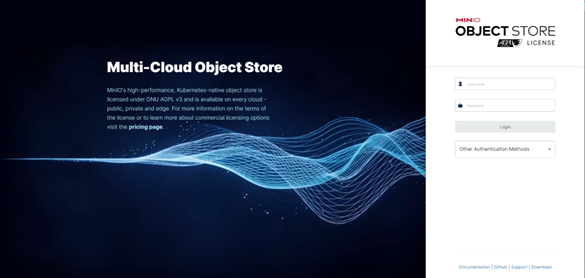
Upload the Firmware Image
-
Log in to the MinIO console.
-
Create a bucket for the zTC firmware files.
-
Click Manage for the bucket and change the access policy to public.
-
Go to the Buckets page.
-
Upload the zTC firmware image file.
The firmware image should use the
.imafile extension. -
After the firmware image is uploaded, select the firmware image file.
-
From the Selected Object panel, click Share.
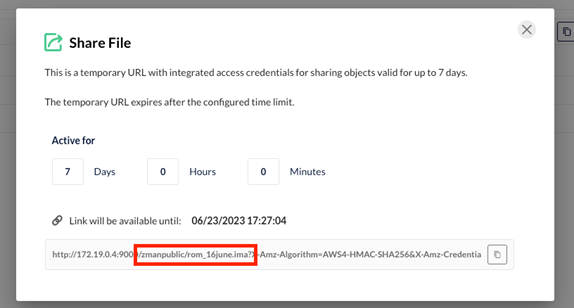
- Copy the firmware image URL.
The firmware image URL should use the following format:
https://<zMan-IP>:7080/minio/<bucketname and path>/xxx.imaExample:
https://<zMan-IP>:7080/minio/ztc-fw/1.2.620.imaUpdate the Manifest File
Before uploading the manifest.json file, update the manifest so the path value points to the uploaded firmware image URL.
Example:
{
  "model": "zTC3150L",
  "version": "1.2.620",
  "images": [
    {
      "from": "*",
      "to": "1.2.621",
      "path": "https://<zMan-IP>:7080/minio/ztc-fw/1.2.620.ima",
      "checksum": "317287ff3bd36a9e859a5be999ae014f"
    }
  ]
}
Upload the Manifest File
After the manifest file is updated, upload the manifest.json file to the same MinIO bucket.
The manifest URL should use the following format:
https://<zMan-IP>:7080/minio/<bucketname and path>/manifest.jsonExample:
https://<zMan-IP>:7080/minio/ztc-fw/manifest.jsonImportant Notes
The firmware image must be uploaded before the manifest file because the manifest needs to reference the final firmware image URL.
The MinIO bucket access policy must be set to public so zMan Director can retrieve the firmware image during the firmware update process.
The shared MinIO URL may be temporary depending on the MinIO share settings. Verify that the URL used in the manifest will remain accessible when zMan Director performs the firmware update.
2. Add Manifest URL to zMan MSP Admin Site
After the firmware manifest URL is available from either AWS or MinIO, add the manifest URL to the zMan MSP Admin site.
This step is required for both firmware update methods.
Access the zMan MSP Admin Site
Open the zMan MSP Admin site using the following URL:
https://<zMan-IP>:7080/Log in using the MSP Admin credentials.
Username: [email protected]
Password: xxxxx
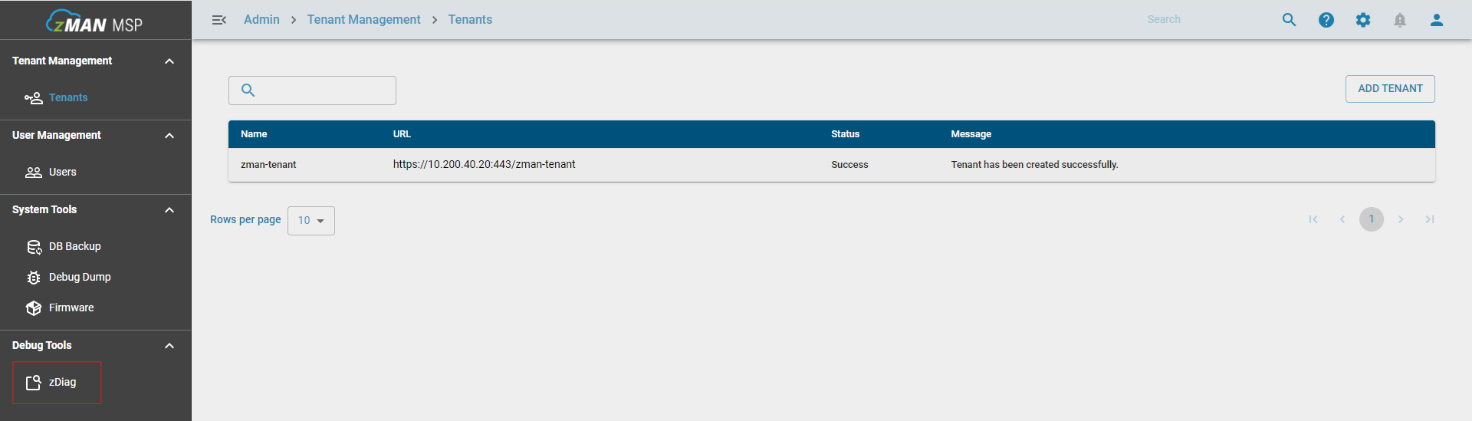
The MSP Admin site displays available tenant information under Tenant Management > Tenants.
Add the Firmware Manifest URL
-
In the zMan MSP Admin site, go to System Tools > Firmware.
-
Add the manifest URL for the firmware package.
For MinIO, the manifest URL should use the following format:
https://<zMan-IP>:7080/minio/ztc-fw/manifest.jsonFor AWS or CloudFront, the manifest URL may use a format similar to the following:
https://xxxx.cloudfront.net/zTC3150L/1.x.xxxx/manifest_1.x-vxxx.json- Save the firmware entry.
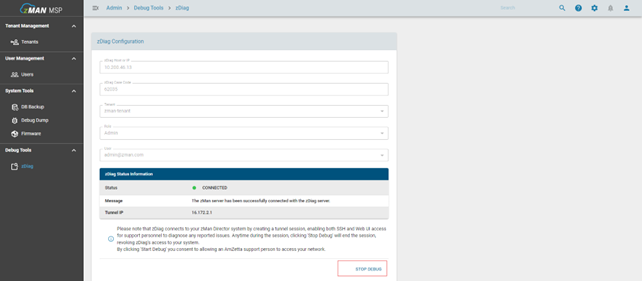
After the manifest URL is saved, the firmware package becomes available to zMan Director for firmware update tasks.
Important Note
Firmware update supports one firmware image file at a time for each firmware version.
3. Perform Firmware Update from zMan Director UI
After the firmware manifest URL is added in MSP Admin, the firmware package becomes available in zMan Director.
This step is required for both AWS-based and MinIO-based firmware updates.
Perform a Firmware Update
-
Log in to zMan Director.
-
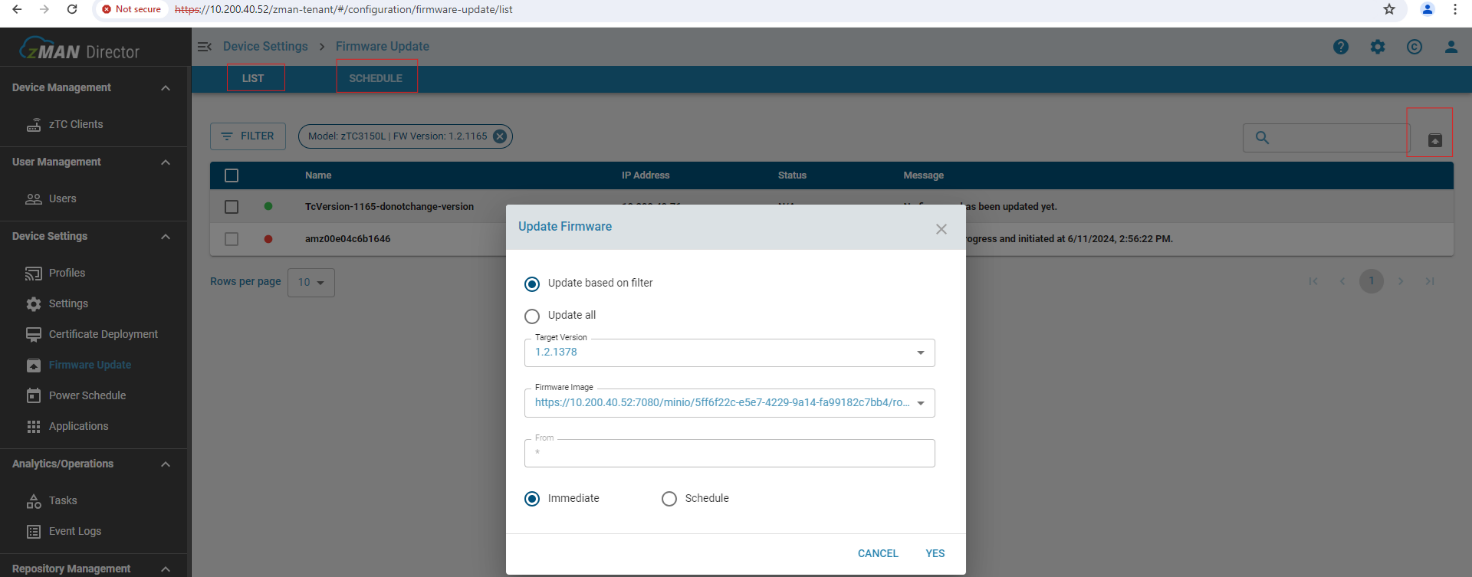
Navigate to Device Settings > Firmware Update.
-
Use the LIST tab to view available devices.
-
Apply any needed filters to target devices by model or firmware version.
-
Click the firmware update icon on the right side of the page.
-
In the Update Firmware window, choose one of the following options:
- Update based on filter
- Update all
-
Select the Target Version.
-
Select the Firmware Image.
-
Confirm the From version field.
-
Choose the update timing:
- Immediate
- Schedule
-
Click YES to start or schedule the firmware update.
Immediate Firmware Update
Select Immediate when the firmware update should begin right away.
When the update is applied, the zTC begins downloading the firmware image. After zMan receives confirmation that the download is successful, zMan sends the flash firmware command to the device.
Scheduled Firmware Update
Select Schedule when the firmware update should run at a specific time.
A scheduled firmware task can be used to control when the firmware download and flash process begins. Depending on the task status, scheduled firmware update tasks may be rescheduled or canceled.
Offline Device Behavior
zMan Director allows firmware updates to be assigned to offline devices.
If a device is offline when the update is assigned, the firmware update task is placed into a deferred state. When the device comes back online, zMan pushes the firmware update task to the device.